
Introduction
Bluetooth has become an essential part of everyday smartphone use. From wireless headphones and speakers to smartwatches, car systems and other accessories, we rely on Bluetooth to keep our devices connected without cables.
But what happens when Bluetooth suddenly stops working?
If your phone cannot find a Bluetooth device, refuses to pair, keeps disconnecting, or connects without playing sound, the problem can be frustrating. Fortunately, many Bluetooth connection problems can be resolved with a few simple checks.
In this guide, we explain some of the most common Bluetooth problems and what you can do to fix them.
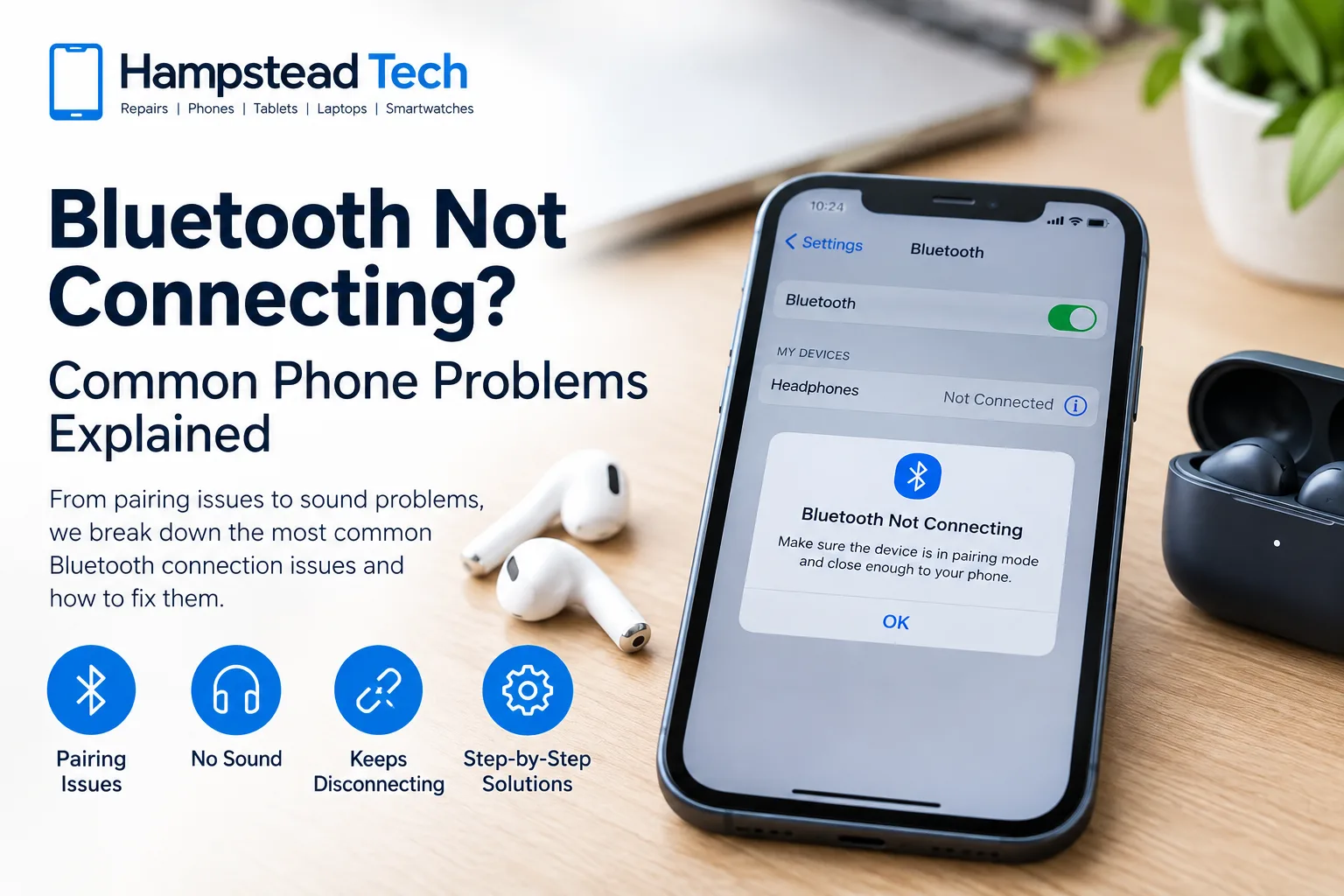
Why Is My Bluetooth Not Connecting?
There are several reasons why your phone may fail to connect to a Bluetooth accessory. The issue could be something simple, such as low battery or the accessory being too far away, or it could be related to software, pairing information or the phone’s hardware.
Common causes include:
Bluetooth is temporarily malfunctioning
The accessory is not in pairing mode
Your phone and accessory are too far apart
The Bluetooth accessory has a low battery
The accessory is already connected to another device
Old or corrupted pairing information
Software or operating system issues
Compatibility problems
A fault with the phone or Bluetooth hardware
Before assuming your phone needs a repair, try the following troubleshooting steps.
1. Turn Bluetooth Off and On Again
One of the simplest solutions is also one of the most useful.
Open your phone’s Bluetooth settings, turn Bluetooth off, wait a few seconds, and turn it back on. Then try searching for your accessory again.
For Android devices, Google recommends turning Bluetooth off and on again as one of the first troubleshooting steps.
On an iPhone, you can access Bluetooth through Settings > Bluetooth.
2. Restart Your Phone and Bluetooth Device
Temporary software glitches can sometimes prevent Bluetooth connections from working correctly.
Restart both devices:
Turn off your phone.
Turn off your headphones, speaker, smartwatch or other Bluetooth accessory.
Wait a few seconds.
Turn both devices back on.
Try pairing them again.
Samsung also recommends restarting both the phone and Bluetooth device when troubleshooting connection problems.
3. Make Sure the Accessory Is in Pairing Mode
Your phone cannot always detect a Bluetooth device simply because the device is switched on.
Many Bluetooth accessories need to be placed into pairing or discovery mode before they appear in your phone’s Bluetooth list.
Check the instructions for your headphones, speaker, smartwatch or car system and make sure it is ready to pair.
Also make sure the accessory has enough battery. Apple recommends checking that a Bluetooth accessory is switched on and sufficiently charged before troubleshooting further.
4. Move Your Devices Closer Together
Bluetooth connections can become unreliable when there is too much distance or physical obstruction between devices.
Place your phone close to the Bluetooth accessory and try connecting again.
If you are experiencing frequent audio dropouts, walls, floors, other wireless devices and areas with significant Wi-Fi activity can sometimes interfere with the connection.
5. Check If the Accessory Is Connected Somewhere Else
This is a particularly common problem with headphones and speakers.
For example, your headphones may automatically reconnect to your laptop or another phone instead of connecting to your current phone.
Try turning Bluetooth off on nearby devices that have previously been paired with the accessory. Then put the accessory back into pairing mode and try connecting it to your phone.
6. Forget the Device and Pair It Again
If your phone can see the Bluetooth accessory but will not connect, removing the existing pairing and starting again can help.
On an iPhone:
Settings > Bluetooth > select the device > Forget This Device
Then put the accessory back into pairing mode and connect it again.
On Android, the exact menu names can vary by manufacturer, but you can generally open Bluetooth settings, select the saved device and choose Forget or Unpair.
Both Apple and Google recommend unpairing and reconnecting as a troubleshooting step for persistent Bluetooth connection problems.
7. Check for Software Updates
Bluetooth problems can sometimes be caused by software bugs or compatibility issues.
Check whether your phone has a pending operating system update. You should also check whether your Bluetooth accessory requires a firmware update through its manufacturer’s app.
Samsung specifically recommends checking for software updates on both the phone and Bluetooth accessory when troubleshooting connection problems.
8. Bluetooth Connects but There Is No Sound
Sometimes Bluetooth appears to work, but you cannot hear anything through your headphones or speaker.
First, check the volume on both devices.
If you’re using an Android phone, also check whether Media Audio is enabled for the connected Bluetooth device. Google recommends checking this setting when Bluetooth connects but music cannot be heard.
On an iPhone, check that the correct audio output is selected and that the accessory is actually connected.
9. Bluetooth Keeps Disconnecting
If your device connects successfully but repeatedly disconnects, try:
Restarting both devices
Forgetting and re-pairing the accessory
Keeping the devices closer together
Charging the accessory
Disconnecting the accessory from other devices
Installing available software updates
Testing a different Bluetooth accessory
If other Bluetooth devices work normally with your phone, the problem may be with the original accessory rather than your phone.
If multiple Bluetooth accessories repeatedly fail to connect, however, further troubleshooting may be necessary.
10. When Could Your Phone Need Professional Repair?
If Bluetooth refuses to turn on, is greyed out, or your phone cannot connect to any Bluetooth accessories despite trying the standard troubleshooting steps, there could be a deeper software or hardware problem.
Apple recommends seeking support when Bluetooth cannot be turned on or when no Bluetooth accessories can connect even though the accessory itself is confirmed to be working.
A professional technician can diagnose whether the problem is related to the phone’s software, connectivity components or other internal hardware.
Don’t Ignore Other Connectivity Problems
Bluetooth problems can sometimes occur alongside other phone issues, such as charging problems, water damage, battery problems or general software faults.
If your phone has recently been dropped, exposed to liquid, or developed several connectivity problems at the same time, avoid repeatedly resetting or opening the device yourself. Professional diagnosis can help identify the underlying cause without unnecessarily replacing working components.
Get Your Phone Checked by Hampstead Tech
Still having trouble connecting your phone to Bluetooth headphones, speakers, a smartwatch or your car?
Hampstead Tech provides professional phone repair and gadget repair services in Hampstead. The team works with major smartphone brands including Apple, Samsung, Google, Huawei, Xiaomi, OnePlus, Oppo, Vivo, Sony, Motorola and others. The business also offers services including battery replacement, charging-port repair, water-damage repair and software-related repairs.
If basic troubleshooting has not solved your Bluetooth problem, a professional diagnosis may be the next step.
Visit Hampstead Tech at 47 Hampstead High St, NW3 1QG, or contact the team to discuss your device.
Frequently Asked Questions
Why won’t my phone find my Bluetooth device?
Make sure the accessory is switched on, charged and in pairing mode. Keep it close to your phone and try turning Bluetooth off and on again.
Why does Bluetooth connect but not play music?
Check your phone’s volume and make sure the Bluetooth accessory is selected as the audio output. On some Android devices, Media Audio may also need to be enabled.
Should I forget my Bluetooth device and pair it again?
Yes. If an accessory has previously been paired but will no longer connect, forgetting or unpairing it and then pairing it again can resolve connection problems.
What if Bluetooth does not work with any device?
If your phone cannot connect to multiple known-working Bluetooth accessories, especially if Bluetooth cannot be enabled, professional troubleshooting may be appropriate.
Can water damage affect Bluetooth?
Yes. Liquid exposure can damage internal electronic components and cause connectivity or other hardware problems. If Bluetooth stopped working after your phone was exposed to liquid, professional water-damage assessment is recommended.
Need this fixed?
We repair these at our workshop at 47 Hampstead High Street, London NW3 1QG. See our phone repair service, or book a repair online.