
Introduction
MacBooks are known for their performance, reliability, and long battery life. However, like all rechargeable devices, their batteries gradually lose capacity over time. One issue that MacBook users may notice is a “Service Recommended” warning in the battery settings.
Seeing this message can be concerning, especially if your MacBook is still working normally. You may wonder whether the battery is damaged, whether you can continue using your laptop, or if you need a replacement.
The good news is that this warning does not always mean your MacBook has stopped working properly. It usually indicates that the battery has lost some of its original capacity or is not functioning as expected.
In this guide, we will explain what the MacBook battery service warning means, why it appears, and what you can do to resolve the problem.
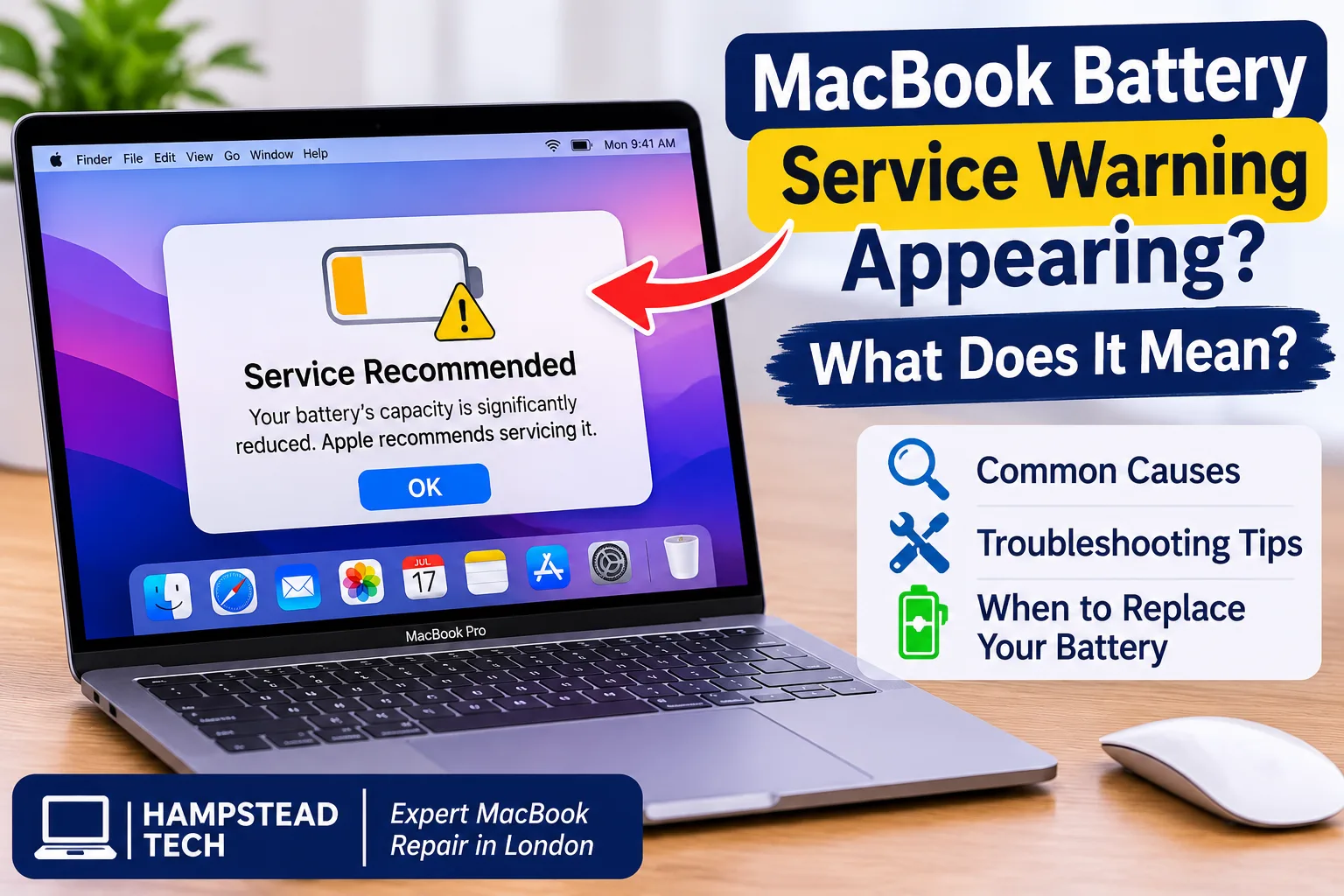
1. What Does the MacBook Battery Service Warning Mean?
The “Service Recommended” message is a battery health notification displayed by macOS. It indicates that your MacBook battery may not hold as much charge as it did when it was new, or that the battery is not operating normally.
You may notice this warning even when your MacBook still turns on, charges, and performs everyday tasks.
Some common signs include:
Battery percentage dropping quickly.
MacBook requiring frequent charging.
Reduced battery backup.
Unexpected shutdowns.
Battery not charging properly.
According to Apple, you can continue using your MacBook with this warning, but battery servicing may be necessary if reduced capacity affects your experience.
2. Natural Battery Ageing
One of the most common reasons for a battery service warning is natural battery ageing.
MacBook batteries use lithium-ion technology. These batteries gradually lose their ability to store energy after repeated charging and discharging.
As your MacBook gets older, you may notice shorter battery life compared with when you first purchased it.
What you can do:
Avoid exposing your MacBook to excessive heat.
Keep macOS updated.
Use a compatible power adapter.
Monitor your battery health regularly.
Consider professional battery replacement when performance becomes poor.
Battery ageing is normal, but replacing an old battery can help restore better everyday usage time.
3. High Battery Cycle Count
A battery cycle represents the use of an amount of energy equal to 100% of the battery’s capacity. This does not necessarily happen in a single charge.
For example, using 50% of your battery one day and another 50% the following day counts as one complete cycle.
As the cycle count increases, battery capacity gradually decreases.
Many MacBook models have batteries designed to retain up to 80% of their original capacity at their maximum rated cycle count. The exact cycle limit depends on the model.
How to check your battery cycle count:
Click the Apple menu.
Select About This Mac or System Settings.
Open General and select About, if available.
Open System Report.
Select Power from the sidebar.
Find the Cycle Count under Battery Information.
Checking the cycle count can help you understand how much your battery has been used.
4. Overheating and Excessive Heat Exposure
Excessive heat can affect your MacBook battery’s performance and long-term lifespan.
If you regularly use your laptop for gaming, video editing, or other demanding tasks, it may generate significant heat.
Keeping your MacBook in a hot environment or blocking its ventilation can also contribute to overheating.
Possible warning signs include:
MacBook becoming unusually hot.
Fans running frequently.
Battery draining faster than usual.
Reduced performance during demanding tasks.
How to prevent overheating:
Use your MacBook on a flat, hard surface.
Keep air vents clear.
Avoid direct sunlight.
Close unnecessary applications.
Keep your laptop clean and properly maintained.
If your MacBook continues overheating, a technician can inspect its cooling system and battery condition.
5. Faulty Battery or Internal Hardware Problems
Sometimes, the service warning appears because the battery is not functioning normally rather than simply reaching the end of its expected lifespan.
A faulty battery component or internal electrical problem may affect charging and battery performance.
You might experience:
Battery percentage changing unexpectedly.
MacBook shutting down without warning.
Battery refusing to charge.
Laptop operating only when connected to power.
Unusual battery temperature.
If these problems occur regularly, professional inspection is recommended.
A technician can check the battery, charging system, and related internal components to identify the actual problem.
6. How to Check MacBook Battery Health
macOS provides a built-in feature that allows users to check their MacBook battery condition.
Follow these steps:
Click the Apple menu.
Open System Settings.
Select Battery.
Find Battery Health.
Check the displayed condition.
You may see one of the following statuses:
Normal: Your battery is functioning normally.
Service Recommended: Your battery has reduced charging capacity or may not be functioning normally.
On older macOS versions, you may need to open System Preferences instead of System Settings.
Checking battery health is a useful first step before arranging a repair.
7. Update macOS and Check Charging Accessories
Sometimes, charging problems can be related to software settings or incompatible charging accessories.
An unsuitable power adapter may provide insufficient power, resulting in slow or unreliable charging.
Try these troubleshooting steps:
Check whether your macOS version has available updates.
Use the correct power adapter for your MacBook.
Inspect the charging cable for visible damage.
Check the charging port for dust or debris.
Disconnect unnecessary external accessories.
Restart your MacBook and check the battery status again.
If the service warning remains, do not assume that a software update will fix it. The battery may genuinely require servicing.
8. When Should You Replace Your MacBook Battery?
A battery replacement may be necessary when your MacBook no longer provides enough power for everyday tasks.
Consider professional battery inspection if:
Your battery drains unusually quickly.
Your MacBook shuts down unexpectedly.
The battery service warning continues appearing.
Your laptop does not charge properly.
Battery performance affects your daily work.
One important warning: If you notice a swollen battery, a raised trackpad, or a bulging MacBook case, stop using the device and arrange professional service immediately. Do not press, puncture, or attempt to remove the battery yourself.
A professional technician can determine whether battery replacement is required and recommend a suitable repair.
How to Prevent MacBook Battery Problems
Taking proper care of your MacBook can help maintain battery performance over time.
Here are some useful tips:
Avoid exposing your MacBook to extreme temperatures.
Use compatible charging accessories.
Keep your macOS software updated.
Enable Optimised Battery Charging when available.
Avoid leaving your MacBook in direct sunlight.
Check battery health occasionally.
Arrange professional inspection when you notice unusual battery behaviour.
These simple habits can help reduce unnecessary battery wear.
Final Thoughts
A MacBook battery service warning usually means that the battery has lost some of its original capacity or is no longer functioning normally. Although your laptop may continue working, shorter battery life, unexpected shutdowns, and charging problems can affect your everyday experience.
Start by checking your battery health and cycle count. If the warning continues appearing or battery performance becomes poor, professional inspection can help determine whether a replacement is needed.
If your MacBook battery is draining quickly or showing a service warning, Hampstead Tech can be a useful place to explore professional laptop repair assistance in London.
Visit Hampstead Tech to learn more about laptop repair services and get help with MacBook battery-related problems.
Need this fixed?
We repair these at our workshop at 47 Hampstead High Street, London NW3 1QG. Read more about MacBook repair in Hampstead, or book a repair online.