
Introduction
Samsung smartphones offer several useful features, including moisture detection technology that helps protect the charging port from potential damage. However, sometimes users see a Moisture Detected warning even when their phone has not been exposed to water.
This warning can be frustrating because it may prevent your Samsung phone from charging through a USB cable. In some situations, the problem is caused by actual moisture, while in others, humidity, dust, or a software issue may be responsible.
If your Samsung phone is showing a moisture detected warning, there is no need to panic. In this guide, we will explain why this message appears, how to fix it safely, and when professional phone repair may be necessary.
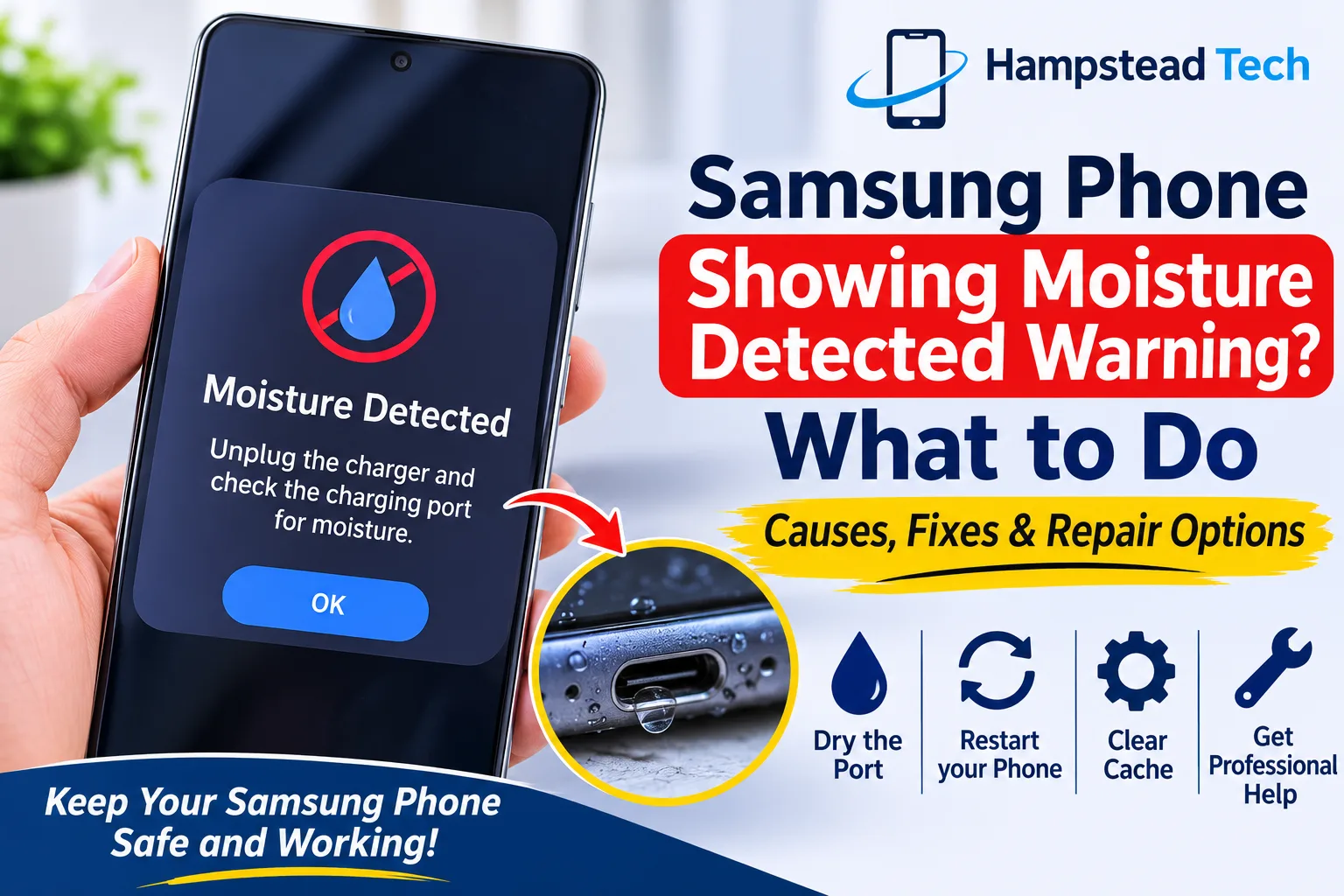
Why Does Your Samsung Phone Show a Moisture Detected Warning?
There are several reasons why your Samsung device may display this warning. Understanding the cause can help you choose the right solution.
1. Water Inside the Charging Port
The most common reason for this warning is moisture inside the USB charging port. Even a small amount of water can activate the moisture detection system.
This may happen if you:
Use your phone with wet hands.
Accidentally drop your phone into water.
Use your phone during heavy rain.
Place your phone on a wet surface.
Connect a charging cable before the port is completely dry.
Samsung temporarily disables wired charging to help prevent corrosion and electrical damage.
2. High Humidity Levels
Sometimes, your Samsung phone may show a moisture warning without direct contact with water. High humidity can also affect the charging port and trigger the moisture detection system.
For example, using your phone in a humid environment or taking it into a bathroom with heavy steam may cause this issue.
3. Dust and Dirt in the Charging Port
Dust, lint, and other small particles can collect inside the charging port over time. These particles may interfere with charging connections and contribute to charging problems.
If your phone frequently displays the moisture warning, the charging port may need careful inspection and cleaning.
4. Damaged Charging Port
Physical damage is another possible reason for moisture detection problems. If your phone has been dropped or the charging port has become worn, its internal connections may not work correctly.
You may also notice:
Charging interruptions.
Loose charging cable connections.
Slow charging.
Frequent moisture warnings.
The phone failing to recognise the charger.
In these situations, professional inspection may be required.
5. Software Glitches
Sometimes, the moisture warning may remain on the screen even after the charging port has completely dried.
This can happen because of a temporary software issue or a problem with the USB system settings. Restarting your phone or clearing the USB cache may help resolve the issue.
How to Fix the Samsung Moisture Detected Warning
If your Samsung phone displays a moisture warning, follow these simple troubleshooting steps.
Step 1: Disconnect the Charging Cable
The first thing you should do is unplug your charger immediately. Do not continue connecting the charging cable while the warning is displayed.
This helps protect your phone from possible electrical damage.
Step 2: Dry the Charging Port
Use a clean, dry, lint-free cloth to wipe the outside of your phone and the area around the charging port.
You can also gently shake your phone with the charging port facing downward to help remove excess moisture.
Avoid inserting tissues, cotton buds, metal objects, or other items into the charging port.
Step 3: Allow Your Phone to Dry Naturally
Place your Samsung phone in a dry, well-ventilated area and allow the moisture to evaporate.
You can use a fan with cool air to help speed up the drying process.
Avoid using a hairdryer with hot air, placing your phone in direct heat, or using rice to dry the device. These methods may cause additional problems.
Step 4: Restart Your Samsung Phone
Once the charging port is completely dry, restart your device.
A restart can help clear temporary system errors and allow your phone to recognise the charging connection again.
Step 5: Clear the USB Cache
If the moisture warning continues even though your charging port is completely dry, clearing the USB cache may help.
On supported Samsung models, follow these general steps:
Open your phone’s Settings.
Go to Apps.
Open the filter and sorting options.
Enable Show System Apps.
Find USBSettings or USB Settings.
Open Storage.
Select Clear Cache.
Menu names and availability may differ depending on your Samsung model and Android version. Follow the manufacturer’s guidance if these options are not available.
Step 6: Try Wireless Charging
If your Samsung phone supports wireless charging, you can use a compatible wireless charger while waiting for the charging port to dry.
Make sure the phone’s exterior is dry before placing it on the wireless charging pad.
What Should You Avoid When Your Samsung Phone Shows a Moisture Warning?
Trying the wrong methods can damage your device further. Here are some things you should avoid:
Do not force the charging cable: Connecting a cable repeatedly while moisture is present can increase the risk of damage.
Avoid using hot air: Excessive heat can damage internal components and seals.
Do not insert sharp objects: Pins, needles, and metal tools can damage the charging port.
Avoid shaking aggressively: Gentle movement is enough to help remove excess moisture.
Do not ignore repeated warnings: Frequent moisture alerts may indicate a charging port or hardware problem.
Following these precautions can help protect your Samsung phone from unnecessary damage.
When Should You Get Professional Samsung Phone Repair?
Sometimes, the moisture detected warning does not disappear even after following all the recommended troubleshooting steps.
If this happens, your phone may have a damaged charging port, corrosion, or another internal hardware issue.
Consider professional phone repair if:
The moisture warning keeps appearing when the port is completely dry.
Your Samsung phone refuses to charge.
The charging cable frequently disconnects.
You notice corrosion or visible damage around the charging port.
Your phone experienced water exposure and developed charging problems.
A professional technician can inspect the charging port, check the internal components, and identify the actual cause of the problem.
Depending on the damage, the device may need professional cleaning, charging port repair, or component replacement.
How to Prevent Moisture Detected Warnings in the Future
Taking care of your Samsung phone can help reduce the chances of moisture-related charging problems.
Here are some useful tips:
Keep your phone away from water and excessive humidity.
Avoid charging your phone with wet hands.
Keep the charging port clean and free from dust.
Use compatible charging cables and adapters.
Avoid placing your phone on wet surfaces.
Allow your device to dry completely after accidental water exposure.
Follow the manufacturer’s care instructions.
Remember that water-resistant phones are not completely waterproof. Their resistance can also decrease over time due to wear and damage.
Final Thoughts
A Samsung phone showing a moisture detected warning can be annoying, especially when you need to charge your device. Fortunately, the problem is often temporary and may be resolved by disconnecting the charger, drying the charging port, and restarting your phone.
However, if the warning continues after the device is completely dry, there may be a software or hardware issue that requires professional attention.
If your Samsung phone has charging problems, a damaged charging port, or persistent moisture warnings, Hampstead Tech can help you explore suitable phone repair options.
Visit Hampstead Tech to learn more about professional mobile phone repair services and get help with your device.
Need this fixed?
We repair these at our workshop at 47 Hampstead High Street, London NW3 1QG. Read more about phone repair in Hampstead, or book a repair online.