
Introduction
A laptop charging port is an important component that allows your device to receive power from its charger. When the port works properly, your laptop charges reliably and can run without interruptions. However, if the charging port becomes loose, damaged, or stops working correctly, you may experience charging problems that affect your daily work.
Many people continue using their laptops even when the charging cable feels loose or the battery charges only when the cable is positioned at a certain angle. Although this may seem like a minor inconvenience, a damaged charging port can sometimes cause further hardware problems and create safety risks.
So, is it safe to use a laptop with a damaged charging port? The answer depends on the type and severity of the damage. In this guide, we explain the warning signs, possible risks, common causes, and steps you can take to protect your laptop.
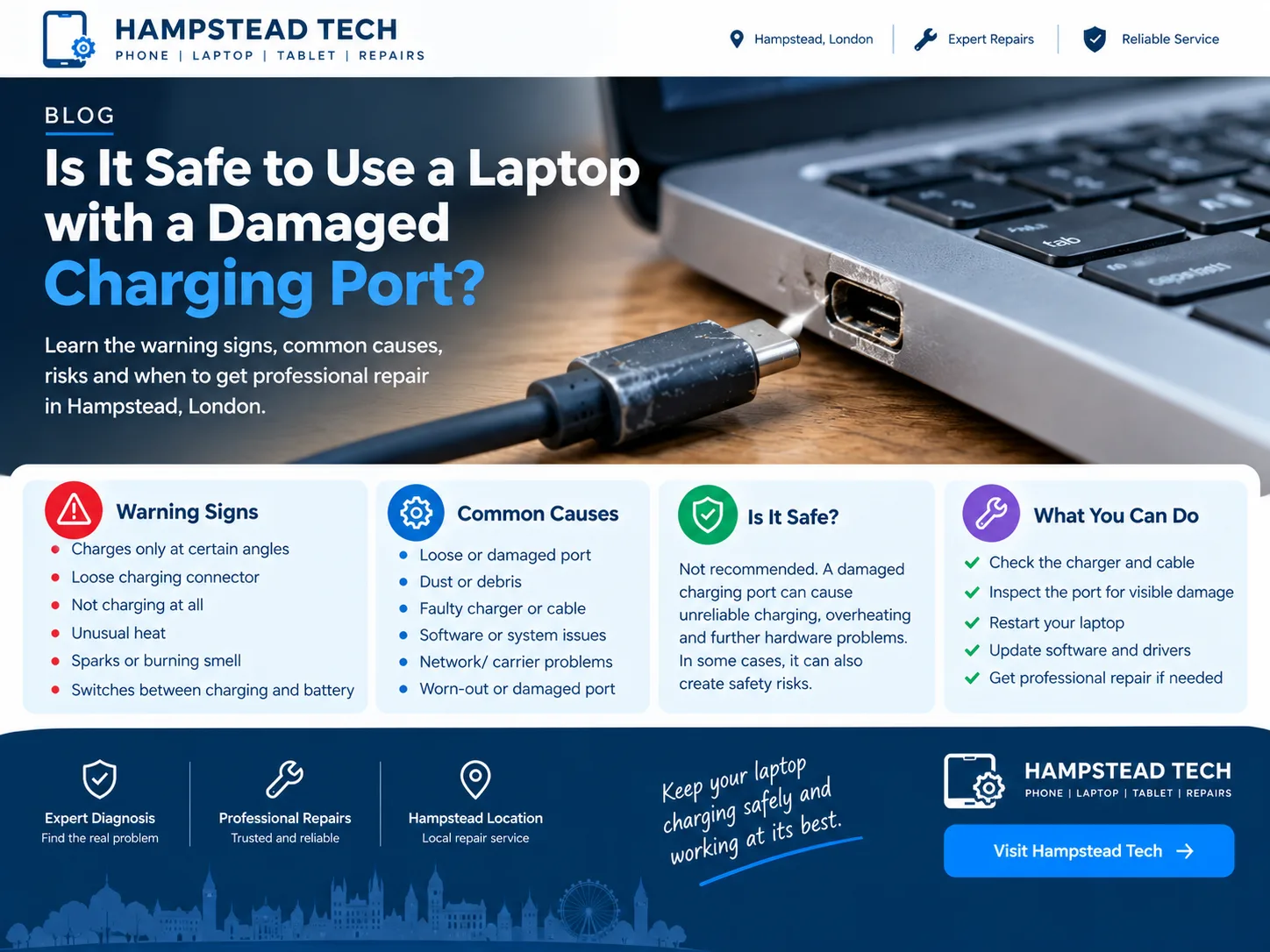
What Is a Laptop Charging Port?
A laptop charging port is the connection point between your laptop and its power adapter. It allows electricity to reach the laptop’s internal power system and charge the battery.
Depending on the model, a laptop may use a traditional barrel-style charging connector, a USB-C port, or a proprietary charging connection.
When the port becomes damaged, the electrical connection may become unreliable. Your laptop might charge intermittently, fail to recognise the charger, or stop charging completely.
Sometimes, the problem is caused by a faulty charger or cable rather than the port itself. Checking the symptoms can help you understand what might be wrong.
Is It Safe to Use a Laptop with a Damaged Charging Port?
Using a laptop with a damaged charging port is not recommended, particularly if the connection is loose, overheating, sparking, or showing signs of physical damage.
A worn connector may sometimes cause intermittent charging without creating an immediate safety hazard. However, you should not assume that a damaged port is harmless.
Potential risks include:
Unstable power delivery.
Excessive heat around the charging connection.
Damage to the charging cable or connector.
Further damage to the port or internal power circuitry.
Battery charging problems and unexpected shutdowns.
If you notice sparks, smoke, a burning smell, melting plastic, or unusual heat around the charging port, stop using the charger immediately. Disconnect it only if it is safe to do so, and do not reconnect it to test whether the problem has disappeared.
A qualified laptop repair technician can inspect the port and determine whether it needs repair or replacement.
Common Signs of a Damaged Laptop Charging Port
Recognising the warning signs early can help prevent additional damage.
1. The Laptop Charges Only at Certain Angles
One of the most common signs of a damaged charging port is intermittent charging.
You may notice that your laptop starts charging when the cable is positioned in a particular direction but stops when the cable moves slightly.
This may indicate a loose port, damaged connector, or worn cable. However, a faulty charger or an internal connection problem can cause similar symptoms.
Avoid bending, twisting, or holding the cable at an unusual angle to maintain power. This can put additional stress on the connector and make the problem worse.
2. The Charging Connector Feels Loose
The charging connector should fit securely into the laptop’s charging port.
If the plug moves excessively, falls out easily, or no longer fits correctly, the port or connector may be damaged.
A loose connection can interrupt power delivery and cause your laptop to switch between charging and battery power.
Do not force the connector into the port. If the fit has changed, arrange an inspection rather than trying to tighten or reshape the connection yourself.
3. The Laptop Is Not Charging
If your laptop does not charge when connected to a power adapter, the charging port could be one possible cause.
Other potential causes include:
A faulty power adapter.
A damaged charging cable.
A defective battery.
A problem with the power outlet.
A fault in the laptop’s internal charging circuitry.
Before assuming the port is damaged, check the power outlet and inspect the charger for visible damage. If available, use a known-compatible charger that meets your laptop manufacturer’s requirements.
If the laptop still does not charge, professional diagnosis may be necessary.
4. The Charging Port Becomes Unusually Hot
A charging connection may become slightly warm during normal use, but excessive heat is a warning sign.
If the area around the port becomes unusually hot, the connector may have a poor electrical connection or another fault.
Excessive heat can damage nearby components and increase the risk of an electrical incident.
Stop charging the laptop if the port becomes excessively hot. Do not touch exposed or damaged electrical components, and arrange a professional inspection before using the connection again.
5. You Notice Sparks or a Burning Smell
Sparks, smoke, melting, or a burning smell around the charging port are serious warning signs.
These symptoms may indicate an electrical fault, damaged connector, or short circuit.
If this happens, stop using the laptop and charger immediately. Disconnect the power only if it is safe to do so. If the device is smoking or showing signs of fire, keep away and seek appropriate emergency assistance.
Do not attempt to repair the port yourself or reconnect the charger.
6. The Laptop Keeps Switching Between Charging and Battery Power
Another warning sign is a charging indicator that repeatedly turns on and off.
Your laptop may show that it is charging for a few seconds before switching back to battery power. This can happen when the connection is unstable.
A damaged charging port is one possible explanation, but a faulty adapter, cable, battery, or internal power component can cause similar behaviour.
If the problem continues, have the laptop checked to identify the source of the interruption.
What Causes a Laptop Charging Port to Become Damaged?
Several factors can contribute to charging port damage.
Frequent Plugging and Unplugging
Repeatedly connecting and disconnecting a charger can gradually wear the port or its internal connections.
Carefully inserting and removing the charging connector can help reduce unnecessary stress.
Pulling or Bending the Charging Cable
Pulling the cable instead of gripping the connector can place pressure on the port. Using the laptop while the cable is sharply bent may also stress the connection.
Keep the cable positioned naturally and avoid placing weight on the charging connector.
Accidental Drops or Impacts
Dropping a laptop or striking the charging cable while it is connected can damage the port or loosen its internal mounting.
If charging problems begin immediately after an impact, the port should be inspected.
Dust and Debris
Dust or debris inside a charging port can interfere with the connection. However, a port that appears dirty may also have a separate hardware fault.
Avoid inserting metal objects, needles, or other tools into the port. If debris is difficult to remove safely, ask a qualified technician for assistance.
Using an Incompatible Charger
A charger that does not meet the laptop manufacturer’s requirements may cause charging problems or create other risks.
Use a compatible adapter with the correct electrical specifications. For USB-C laptops, make sure the charger and cable support the power requirements of your particular device.
What Should You Do If Your Laptop Charging Port Is Damaged?
If you suspect charging port damage, follow these practical steps.
Step 1: Stop Using the Damaged Connection
If the port is loose, visibly damaged, or charging intermittently, avoid repeatedly connecting and disconnecting the charger.
If you notice sparks, smoke, unusual heat, or a burning smell, stop charging immediately.
Step 2: Check the Charger and Cable
Inspect the charger and cable for fraying, bent connectors, exposed wires, or other visible damage.
Do not use a damaged adapter or cable. Even if everything appears intact, the problem could still be inside the laptop.
Step 3: Check for Visible Port Damage
With the laptop disconnected from power, look at the charging port without inserting tools or touching internal contacts.
Check for obvious damage, a bent connector, or visible debris. Do not attempt to bend the port back into position.
Step 4: Back Up Important Files If Safe
If your laptop is operating normally on battery power and shows no signs of an electrical or battery hazard, back up important files before arranging a repair.
If the laptop is overheating, smoking, or showing other serious warning signs, prioritise safety rather than attempting a backup.
Step 5: Arrange Professional Repair
A technician can inspect the charging port, test the adapter, and check the laptop’s internal charging circuitry.
Depending on the design and extent of the damage, the repair may involve replacing the port, repairing its connection to the motherboard, or fixing another faulty component.
Can a Damaged Laptop Charging Port Be Repaired?
Yes, many damaged laptop charging ports can be repaired. However, the appropriate solution depends on the laptop model and the type of damage.
Some charging ports are separate components that can be replaced relatively easily. Others are soldered directly to the motherboard and require specialist equipment.
Possible repair options include:
Charging port replacement: Suitable when the port itself is damaged and can be replaced.
Charger or cable replacement: Appropriate when the problem comes from the external power adapter or cable.
Motherboard-level repair: May be necessary if the port’s internal connections or power circuitry are damaged.
Charging system diagnosis: Helps identify battery or power-management faults that resemble port damage.
A proper diagnosis is important because replacing the charging port will not solve a problem caused by a faulty charger or battery.
Can You Use a Laptop While It Is Charging Through a Damaged Port?
It is best to avoid using a damaged charging port until the cause has been identified.
If the connection is unstable, normal movement may interrupt charging or place additional stress on the connector. Continuing to use a port that overheats or shows signs of electrical damage can be dangerous.
If your laptop is operating safely on battery power, you may be able to back up your files and prepare the device for repair. Avoid reconnecting a suspect charger simply to keep the laptop running.
If your laptop supports USB-C charging, do not assume another port is safe to use without checking the manufacturer’s specifications and confirming that the alternative connection is undamaged.
How Much Does Laptop Charging Port Repair Cost?
The cost of laptop charging port repair depends on several factors:
Laptop model: Some ports are easier to replace than others.
Type of damage: A simple port replacement may cost less than motherboard-level repair.
Parts availability: Older or less common models may require specialised components.
Labour and diagnosis: A technician may need to inspect the charging system before providing a final quote.
Additional damage: Heat or electrical faults may affect other components.
For an accurate estimate, provide the repair service with your laptop’s make and model and explain the symptoms. Ask whether the quoted price includes diagnosis, replacement parts, labour, and any repair warranty.
How to Prevent Laptop Charging Port Damage
A few simple habits can help protect your laptop’s charging port.
Insert and remove the charging connector gently.
Avoid pulling the cable to disconnect the charger.
Keep the cable free from sharp bends and tension.
Do not move the laptop abruptly while it is plugged in.
Use a compatible charger and cable.
Keep the charging port free from debris.
Arrange an inspection if the connector becomes loose or charging becomes unreliable.
These precautions cannot prevent every hardware fault, but they can reduce unnecessary wear and help you identify problems before they become more serious.
When Should You Contact a Laptop Repair Specialist?
You should seek professional help if your laptop stops charging, the connector feels loose, or the charging indicator repeatedly switches on and off.
Professional inspection is especially important if the port becomes excessively hot, shows visible damage, or produces sparks or a burning smell.
A repair technician can identify the underlying problem and determine whether the charging port, adapter, battery, or motherboard needs attention.
If you need help with a damaged charging port, Hampstead Tech is an option to explore for laptop repair services in Hampstead, London. Contact the team to discuss your laptop model, describe the symptoms, and confirm the available repair options.
Final Thoughts
Using a laptop with a damaged charging port can lead to unreliable charging and further hardware problems. In some cases, particularly when there is excessive heat, sparking, smoke, or a burning smell, the damage can create a serious safety risk.
If your laptop charges only at certain angles, the connector feels loose, or the charging indicator keeps switching on and off, stop relying on the damaged connection and arrange an inspection.
Avoid forcing the charger into the port or attempting an internal repair without the proper skills and equipment. A professional diagnosis can help identify the cause, prevent unnecessary repairs, and get your laptop charging safely again.
For laptop repair information and charging port repair options in Hampstead, London, visit Hampstead Tech.
Need this fixed?
We repair these at our workshop at 47 Hampstead High Street, London NW3 1QG. Read more about laptop repair in Hampstead, or book a repair online.