
Introduction
Have you ever turned on your laptop and noticed horizontal lines running across the screen? These lines may appear as thin coloured stripes, flickering bands, or dark and bright sections that make it difficult to read text and view images. Sometimes, they disappear after restarting the laptop, while in other cases, they remain visible throughout use.
Horizontal lines on a laptop screen can be caused by several issues, including outdated graphics drivers, loose display cables, damaged screen panels, overheating, or graphics card problems.
Although some display issues can be fixed with simple troubleshooting, others require professional inspection and repair. Understanding the possible causes can help you choose the right solution and avoid unnecessary replacement costs.
In this guide, we will explain why your laptop screen displays horizontal lines and discuss practical troubleshooting methods and repair options.
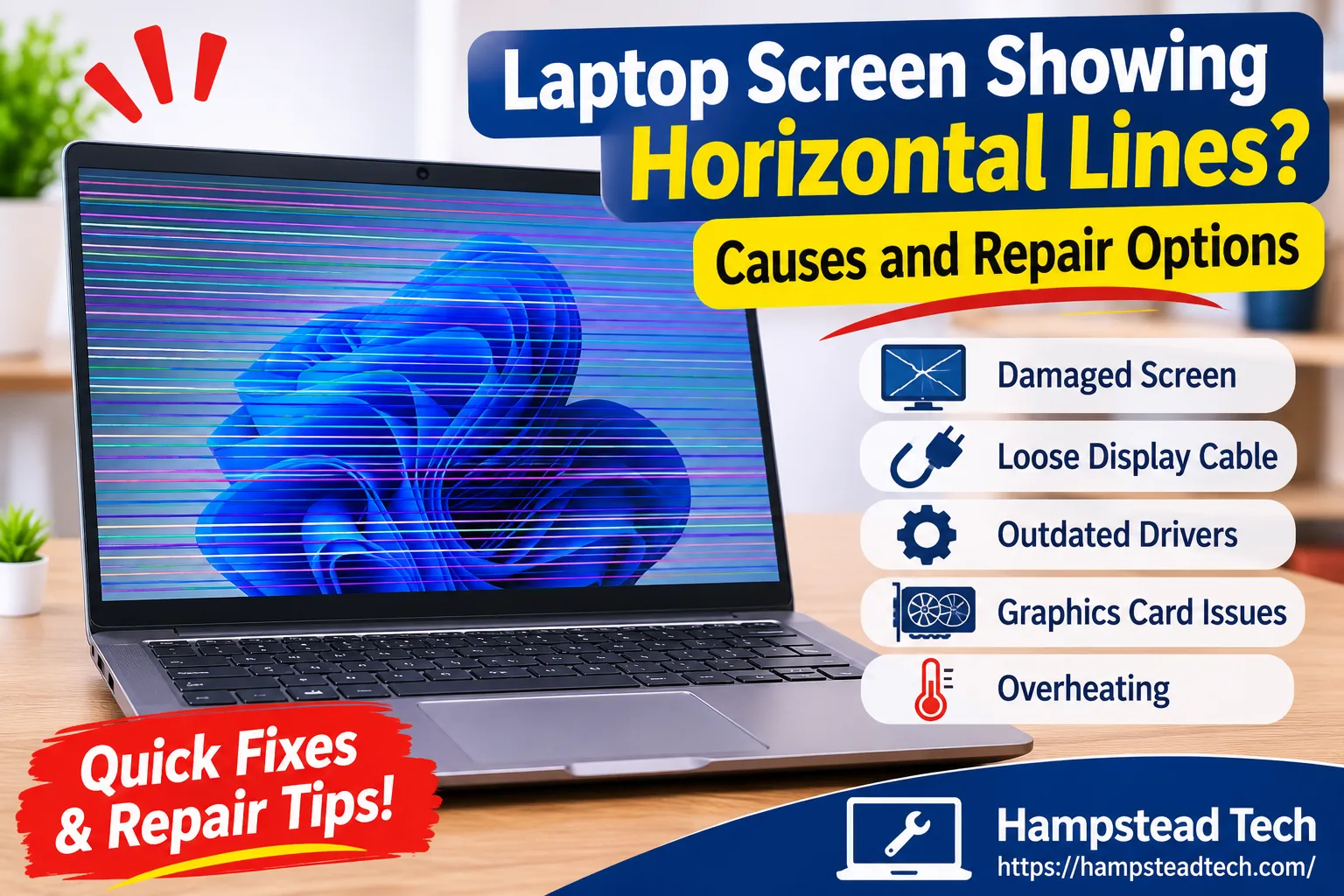
Common Causes of Horizontal Lines on a Laptop Screen
Horizontal lines can appear for different reasons. Identifying the source of the problem is important before attempting any repair.
1. Damaged Laptop Screen
Physical damage is one of the most common reasons for horizontal lines on a laptop display. Accidental drops, pressure on the screen, or closing the laptop with an object between the keyboard and display can damage the LCD panel.
You may notice coloured lines, black stripes, flickering sections, or distorted images.
Even if the screen does not have visible cracks, its internal display components may still be damaged.
Possible solution:
If the horizontal lines remain visible after restarting the laptop, the screen panel may need professional inspection. If the LCD panel is damaged, replacing it with a compatible screen is often the most effective solution.
2. Loose or Damaged Display Cable
A display cable connects the laptop’s motherboard to its screen. It carries the video signal required to display images correctly.
Over time, this cable can become loose, worn, or damaged due to repeated opening and closing of the laptop lid.
Common symptoms include:
Horizontal lines appearing randomly.
Screen flickering when adjusting the lid.
Display colours changing unexpectedly.
Screen going black and returning.
Distorted images during normal use.
Possible solution:
A technician can inspect the display cable and its connectors. If the cable is loose, reconnecting it may resolve the problem. If it is damaged, replacing it may restore normal screen performance.
Avoid repeatedly moving or pressing the screen to test the connection, as this could make the damage worse.
3. Outdated or Corrupted Graphics Drivers
Graphics drivers help your laptop communicate with its display hardware. If these drivers become outdated, corrupted, or incompatible with an operating system update, display problems may occur.
You might experience horizontal lines, screen flickering, unusual colours, or poor display performance.
Possible solution:
Updating or reinstalling the graphics driver may fix software-related display problems.
For Windows laptops:
Right-click the Start button.
Open Device Manager.
Expand Display adapters.
Right-click your graphics device.
Select Update driver.
Follow the instructions on the screen.
You can also download the latest compatible graphics drivers from your laptop manufacturer’s official website.
Restart the laptop after installing the update and check whether the horizontal lines disappear.
4. Graphics Card Problems
The graphics processing unit (GPU) is responsible for rendering images, videos, and other visual content. If the GPU develops a fault, the laptop may display horizontal lines, graphical glitches, or distorted images.
This problem can occur because of overheating, electrical damage, or failing hardware.
Possible solution:
First, connect your laptop to an external monitor or television using HDMI or another compatible video connection.
If the external display also shows horizontal lines, the graphics hardware or its drivers may be responsible. If the external display works normally, the laptop screen or display cable may be the cause.
This test is helpful for narrowing down the problem, although it does not confirm the exact faulty component.
GPU-related hardware problems usually require professional diagnosis.
5. Overheating Issues
Excessive heat can affect different laptop components, including the processor and graphics hardware.
When the cooling system is not working properly, the laptop may experience display glitches, performance problems, unexpected shutdowns, or system instability.
Dust accumulation, blocked air vents, and faulty cooling fans are common reasons for overheating.
Possible solution:
Keep the laptop on a flat, hard surface.
Make sure the air vents are not blocked.
Avoid using the laptop on soft surfaces such as beds or cushions.
Clean dust from the cooling system when necessary.
Have the cooling fan inspected if the laptop becomes unusually hot.
If display problems continue alongside overheating, professional inspection is recommended.
6. Incorrect Display Resolution or Refresh Rate
Sometimes, display settings can cause unusual visual behaviour. An incorrect screen resolution or unsupported refresh rate may result in flickering, distorted images, or display instability.
Possible solution:
Check your Windows display settings:
Right-click the desktop.
Select Display settings.
Find the Display resolution option.
Choose the recommended resolution.
Open Advanced display settings.
Select a refresh rate supported by your laptop screen.
Restart your laptop if necessary and check whether the display improves.
7. Faulty Display Connectors or Internal Components
Apart from the display cable, other internal components can contribute to horizontal lines. Damaged connectors, motherboard faults, or problems with the display circuitry may affect the video signal.
These issues are more difficult to identify without opening the laptop and testing its components.
Possible solution:
A professional technician can inspect the display connections, motherboard, and related hardware to identify the faulty component. Depending on the damage, repairing a connector or replacing a component may resolve the issue.
Need this fixed?
We repair these at our workshop at 47 Hampstead High Street, London NW3 1QG. Read more about laptop repair in Hampstead, or book a repair online.