
Introduction
A PC monitor showing a “No Signal” message can be frustrating, especially when you need your computer for work, study, or everyday tasks. You may turn on your desktop computer, hear the fans running, and see the power lights, but the monitor remains black.
This message usually means that your monitor is not receiving a video signal from your computer. The good news is that it does not always mean your monitor is damaged. A loose cable, incorrect input setting, graphics card issue, or computer startup problem could be responsible.
In this guide, we will explain the common reasons why a PC monitor shows no signal and share some practical troubleshooting tips to help you identify and fix the problem.
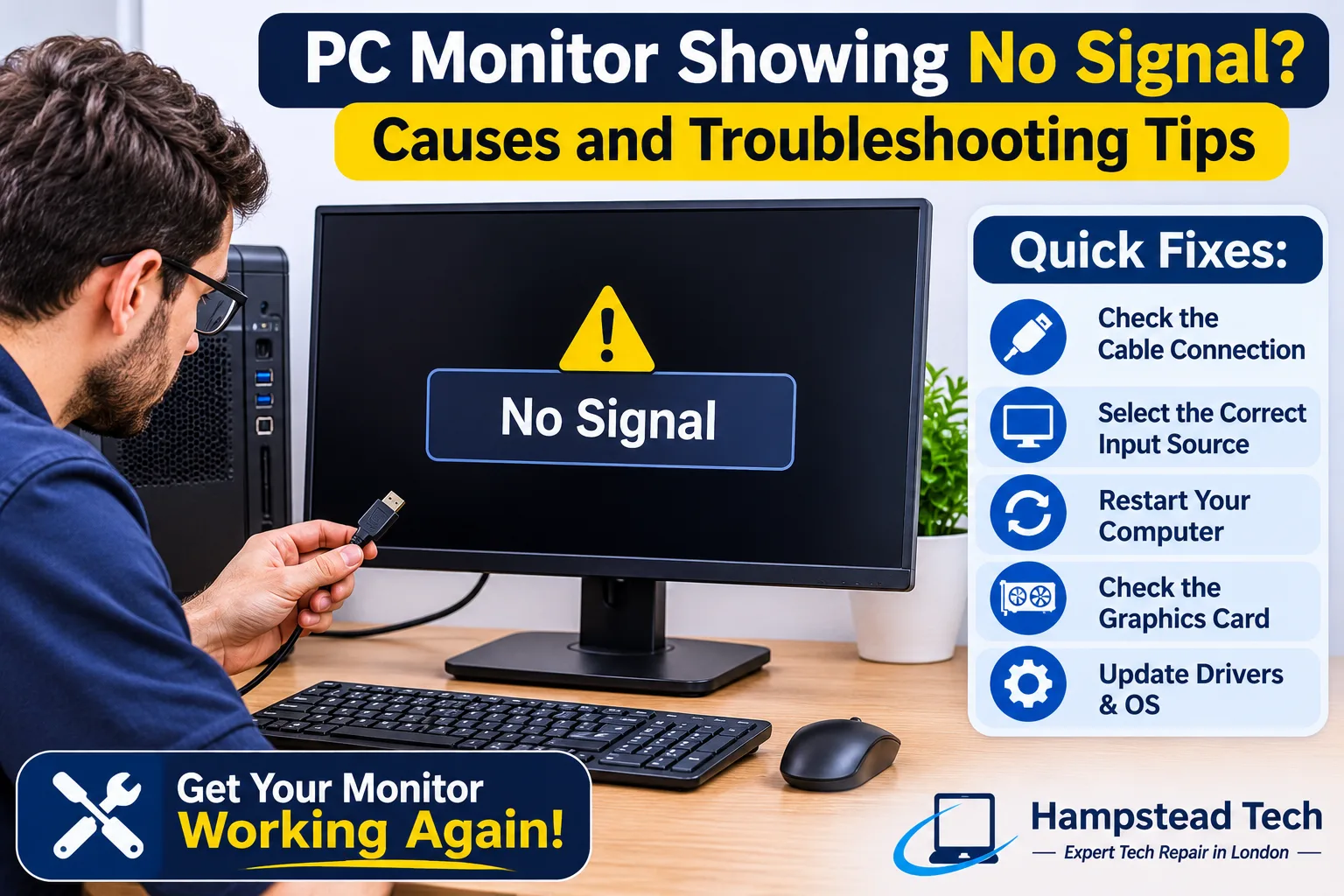
1. Check the Monitor Cable Connection
A loose or damaged cable is one of the most common causes of a no-signal message. Your monitor receives video through a connection such as HDMI, DisplayPort, VGA, or DVI.
If the cable is not connected properly, the monitor may fail to detect your computer.
How to fix it:
Check both ends of the monitor cable.
Disconnect and reconnect the cable securely.
Look for bent pins, damaged connectors, or visible wear.
Try another compatible HDMI or DisplayPort cable.
Make sure the cable is not under pressure or bent sharply.
If the monitor works after replacing the cable, the original cable was probably faulty.
2. Select the Correct Monitor Input Source
Modern monitors often have several input options, including HDMI 1, HDMI 2, DisplayPort, and VGA.
If your monitor is set to the wrong input, it may display “No Signal” even when your computer is working properly.
How to fix it:
Press the Menu or Input button on your monitor.
Open the input source settings.
Select the port connected to your computer.
Wait a few seconds for the monitor to detect the signal.
For example, if your computer is connected through HDMI 2, make sure the monitor is also set to HDMI 2.
3. Restart Your Computer
Sometimes, a computer may fail to start correctly. It might turn on, but a temporary startup problem can prevent it from sending a video signal to the monitor.
Restarting the computer can help resolve minor software or hardware-related issues.
How to fix it:
Turn off your computer.
Wait for a few seconds.
Check that the monitor cable is connected properly.
Turn the computer back on.
Check whether the display returns.
If your computer repeatedly fails to start or shows no display, the issue may require further diagnosis.
4. Check the Graphics Card
A dedicated graphics card processes and sends images to your monitor. If it becomes loose, overheats, or develops a fault, your monitor may stop receiving a video signal.
This issue is particularly common in desktop computers with separate graphics cards.
How to fix it:
Turn off the computer and disconnect it from the power supply.
Check whether the graphics card is properly seated.
Make sure its required power connectors are connected.
Look for signs of physical damage or overheating.
Avoid removing or reinstalling internal components if you are unfamiliar with computer hardware. A professional technician can safely inspect the graphics card and its connections.
5. Connect the Monitor to the Correct Video Port
Some desktop computers have video ports on both the motherboard and the dedicated graphics card.
If your computer has a separate graphics card, connecting the monitor to the wrong port may result in a blank screen.
How to fix it:
Check the back of your desktop computer.
Identify the video ports connected to the graphics card.
Connect your monitor to the appropriate graphics card port.
Restart the computer and check the display.
If you are unsure which connection to use, check your computer or motherboard manual.
6. Check Your RAM
Faulty or incorrectly installed RAM can prevent a computer from completing its startup process. When this happens, the computer may appear to turn on, but the monitor receives no signal.
How to fix it:
Turn off the computer and unplug its power cable.
Check whether the RAM modules are properly installed.
Look for signs of physical damage.
If you have multiple RAM sticks, test them individually with help from a technician.
Incorrectly handling RAM can damage its contacts or the motherboard. If you are not comfortable opening your computer, professional inspection is the safer option.
7. Test the Monitor with Another Computer
Sometimes, the problem is not with your desktop computer. The monitor itself may have a damaged input port or internal fault.
Testing it with another computer can help identify where the problem is coming from.
How to test it:
Disconnect the monitor from your current PC.
Connect it to another working computer or laptop.
Select the correct input source.
Check whether the monitor displays an image.
If it works with another computer, your original PC may have a graphics card, cable, or hardware issue.
If it still shows no signal, the monitor may need professional repair.
8. Check for Overheating
Overheating can affect the performance of your computer’s internal components. A graphics card or processor that becomes too hot may cause the system to freeze, restart, or stop displaying an image.
Dust buildup, blocked air vents, and faulty cooling fans are common reasons for overheating.
How to fix it:
Keep your computer in a well-ventilated area.
Make sure the cooling fans are working.
Clean accessible air vents carefully.
Avoid placing objects near ventilation openings.
Arrange professional cleaning if dust has built up inside the system.
If your computer frequently overheats or loses its display, the cooling system may need attention.
9. Update or Reinstall Graphics Drivers
Outdated or corrupted graphics drivers can sometimes cause display problems, particularly when the computer starts loading Windows.
If you can access another display or start Windows in Safe Mode, you may be able to update or reinstall the graphics driver.
How to fix it:
Open Device Manager in Windows.
Expand the Display adapters section.
Check whether your graphics card has a warning symbol.
Update the driver using the graphics card manufacturer’s official software or website.
If the problem started after a recent update, consider rolling back the driver.
Remember that if your monitor shows no signal before Windows starts, the issue is less likely to be caused by a Windows graphics driver.
10. Check the Power Supply
Your desktop computer needs a stable power supply to operate its internal components. If the power supply unit (PSU) is faulty, the computer may turn on partially without producing a proper display.
Common warning signs include:
Fans starting and stopping repeatedly.
Unexpected computer shutdowns.
Frequent restarts.
Power lights turning on without a display.
Unusual electrical smells.
A faulty power supply can affect other computer components. Never open the PSU yourself because it can retain dangerous electrical charge even when unplugged. Ask a qualified technician to test it.
When Should You Get Professional PC Repair?
Basic troubleshooting may solve a no-signal problem, but some faults require professional attention.
Consider getting your computer inspected if:
The monitor continues showing no signal after checking the cables.
Your graphics card is not working correctly.
The computer turns on but does not complete startup.
You suspect faulty RAM or motherboard components.
The monitor’s HDMI or DisplayPort connection is damaged.
Your computer repeatedly loses its display.
You notice overheating or unusual electrical smells.
A professional technician can test the monitor, graphics card, RAM, power supply, and other components to identify the actual cause.
Final Thoughts
A PC monitor showing no signal does not necessarily mean that you need to replace your monitor or computer. The problem could be something simple, such as a loose HDMI cable or incorrect input source. However, faulty RAM, graphics cards, power supplies, and motherboard components can also cause display problems.
Start with the basic troubleshooting steps before considering hardware replacement. If the problem continues, professional diagnosis can help you avoid unnecessary repairs and get your computer working again.
If your desktop computer or monitor is not displaying anything, Hampstead Tech can help you identify the problem and find a suitable repair solution.
Visit Hampstead Tech to learn more about professional computer and laptop repair services.
Need this fixed?
We repair these at our workshop at 47 Hampstead High Street, London NW3 1QG. Read more about all our repair services, or book a repair online.