
Introduction
A mobile phone helps us stay connected with family, friends, and colleagues. Whether you use your phone for calls, text messages, or mobile internet, a working SIM card is essential for many everyday tasks. However, sometimes a phone displays a “No SIM Card” or “SIM Not Detected” message, even when the SIM card is inserted correctly.
This problem can happen on an iPhone, Samsung Galaxy, Google Pixel, or another Android smartphone. In some cases, the issue is easy to fix at home. In other situations, the SIM card, SIM tray, network settings, or internal phone hardware may need attention.
In this guide, we explain the common reasons a phone cannot detect a SIM card and share practical steps to help you get your device connected again.
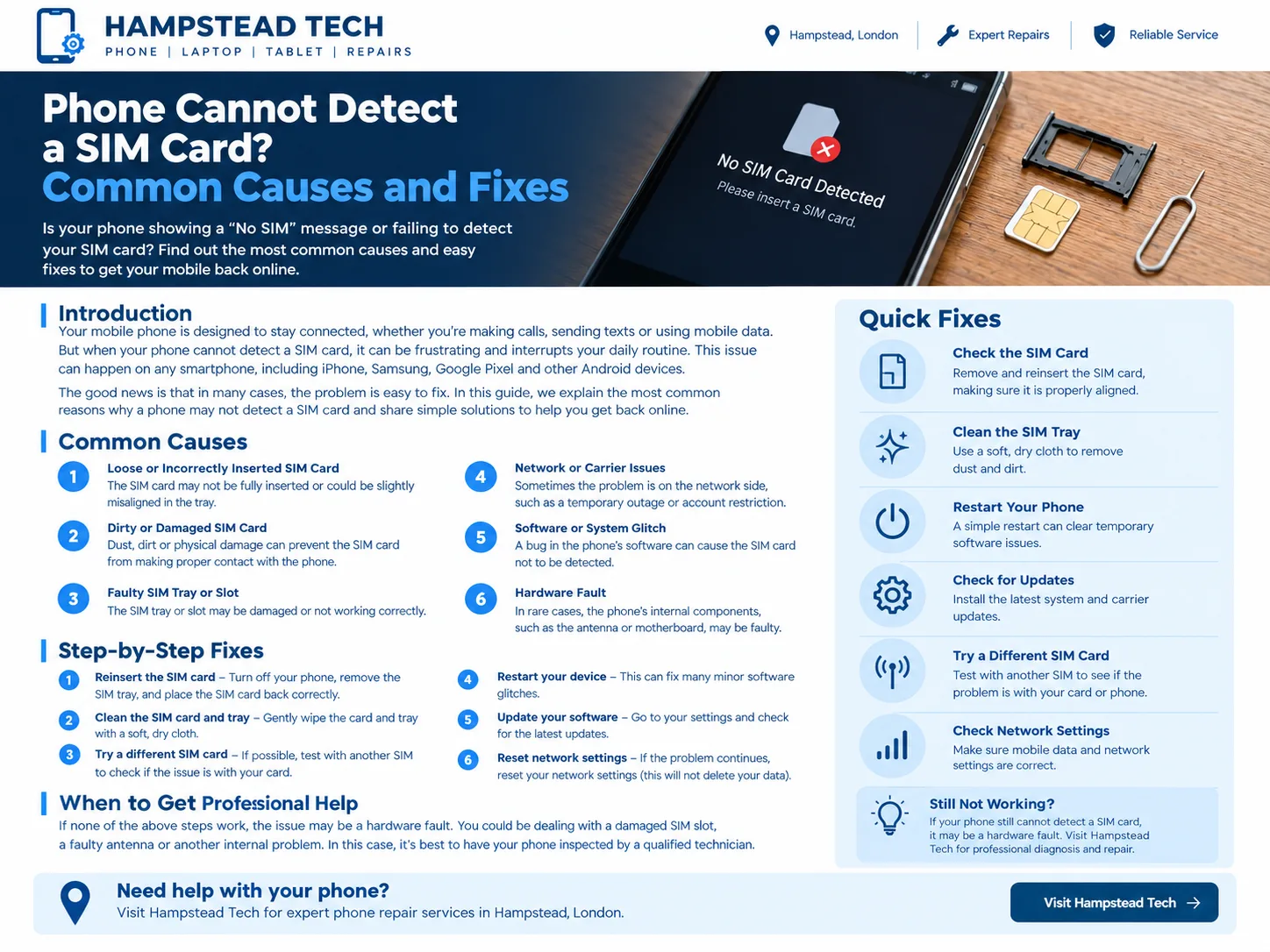
What Does “No SIM Card Detected” Mean?
A SIM card allows your phone to connect to your mobile network using the information provided by your network operator. When your phone cannot read the SIM card, it may be unable to make calls, send standard SMS messages, or use mobile data through your carrier.
You might see messages such as:
No SIM Card
No SIM
SIM Not Detected
Invalid SIM
Emergency Calls Only
No Service
These messages do not always mean the SIM card is damaged. A temporary software problem, incorrect SIM placement, network outage, or faulty SIM reader can also cause connection issues.
Common Causes of SIM Card Detection Problems
1. SIM Card Is Not Inserted Correctly
One of the simplest reasons a phone cannot detect a SIM card is incorrect placement. If the SIM card is not sitting properly in its tray, the phone may not be able to read it.
This can happen after changing SIM cards, removing the tray for cleaning, or accidentally inserting the card in the wrong position.
How to fix it:
Turn off your phone.
Carefully remove the SIM tray using the correct SIM eject tool.
Check that the SIM card is positioned correctly in the tray.
Reinsert the tray gently, making sure it fits properly.
Turn your phone back on and check whether the SIM is detected.
Never force the tray into the phone. If it does not slide in smoothly, check the card’s position and the tray’s orientation.
2. Dirty or Damaged SIM Card
Dust, dirt, moisture, or physical damage can interfere with the contact between a SIM card and the phone’s SIM reader.
If your SIM card has scratches, cracks, corrosion, or signs of liquid exposure, it may no longer work correctly.
How to fix it:
Remove the SIM card after turning off the phone.
Inspect it carefully for visible damage.
If necessary, gently wipe the metal contacts with a clean, dry, lint-free cloth.
Reinsert the SIM card and test it again.
Avoid using water, household cleaners, or abrasive materials. If the SIM card is physically damaged, contact your mobile network provider about a replacement.
3. A Faulty SIM Tray or SIM Slot
The SIM tray holds the card in the correct position inside your phone. If the tray is bent, cracked, or damaged, the SIM card may not make proper contact with the reader.
The SIM slot itself can also develop a fault, particularly after an impact, liquid exposure, or incorrect insertion of the tray.
Signs of a possible hardware problem include a tray that does not fit correctly, repeated SIM detection errors, or a phone that stops detecting the card after being dropped.
If the tray is damaged, it may need replacement. If the internal SIM reader is faulty, a technician may need to inspect and repair the phone.
4. Temporary Software Glitch
Sometimes, the phone’s operating system experiences a temporary problem that prevents it from recognising the SIM card.
This can happen after a software update, an unexpected restart, or a system error.
How to fix it:
Restart your phone.
Wait for the device to reconnect to the mobile network.
Check whether the SIM card is recognised.
If the issue continues, check for available system updates.
Restarting can resolve temporary software issues without requiring a repair. However, if the same error keeps returning, additional troubleshooting may be necessary.
5. Airplane Mode Is Enabled
Airplane Mode disables the phone’s wireless connections, including its cellular connection. Although it does not normally stop a phone from physically recognising an installed SIM card, it can make the device appear disconnected from the mobile network.
How to fix it:
Open your phone’s quick settings or Control Centre.
Check whether Airplane Mode is enabled.
Turn it off.
Wait a few moments for the phone to reconnect to the network.
If the phone still displays “No SIM Card,” the problem is likely to require further investigation.
6. Network or Carrier Problems
Sometimes, the SIM card is working correctly, but the mobile network is experiencing an outage or your account has a service restriction.
A suspended account, an unactivated SIM card, or a carrier-related issue may prevent you from connecting to the network. These problems can also produce messages such as “No Service” or “Emergency Calls Only.”
How to fix it:
Check whether your mobile network provider has reported an outage.
Confirm that your SIM card is active.
Make sure your account and service are in good standing.
Contact your carrier if the problem continues.
Remember that “No Service” and “No SIM” are different problems. “No SIM” often points to a detection issue, while “No Service” may mean the SIM is recognised but cannot connect to the network.
7. Outdated Software or Carrier Settings
An outdated operating system or incorrect carrier configuration can sometimes affect cellular connectivity.
Phone manufacturers and network providers occasionally release updates to improve compatibility and fix known problems.
How to fix it:
Open your phone’s settings.
Check for available operating system updates.
Install official updates compatible with your device.
If you use an iPhone, check whether a carrier settings update is available under Settings > General > About.
Keep your phone connected to a reliable Wi-Fi network during updates when possible. If the problem started after an update, note when it happened and share that information with a repair technician or your carrier.
8. Incorrect Network Settings
Incorrect network settings may prevent a phone from connecting properly to its mobile carrier. This is more likely when the SIM is recognised but calls or mobile data do not work.
Resetting network settings may help resolve persistent connection problems.
Before proceeding, remember that this can remove saved Wi-Fi networks, passwords, VPN configurations, and other network-related settings. The exact effects vary by device.
On many Android phones, the option is available under Settings > System > Reset options. On an iPhone, look under Settings > General > Transfer or Reset iPhone > Reset > Reset Network Settings. Menu names may differ by software version.
Try this step only after simpler troubleshooting methods have failed.
9. The SIM Card Is Damaged or No Longer Active
SIM cards can wear out or become damaged over time. A card may also stop working if it has been deactivated or replaced by your network provider.
If your phone suddenly stops recognising a SIM that previously worked, testing the card in another compatible phone can help narrow down the cause.
If the SIM fails in another compatible device, contact your carrier to check its status or request a replacement.
If the SIM works elsewhere but not in your phone, the issue may be related to the device or its settings.
10. Internal Phone Hardware Failure
If none of the basic fixes work, the phone may have an internal hardware problem. The SIM reader, related circuitry, or other components may be damaged.
This can occur after a drop, liquid exposure, or previous repair work. Sometimes, the problem develops without any obvious external damage.
Hardware faults usually require professional diagnosis. Avoid opening the phone or trying to repair the SIM reader yourself unless you have the appropriate skills and tools.
Step-by-Step Guide to Fix a Phone That Cannot Detect a SIM Card
If your phone displays a SIM detection error, follow these steps in order.
Step 1: Restart the phone.
A restart may clear a temporary software glitch.
Step 2: Check Airplane Mode.
Make sure Airplane Mode is switched off and allow the phone time to reconnect.
Step 3: Reseat the SIM card.
Turn off the device, remove the SIM tray carefully, and insert the card correctly.
Step 4: Inspect the SIM card and tray.
Look for visible damage, dirt, or signs that the tray does not fit properly.
Step 5: Test another SIM card if possible.
Use a known-working, compatible SIM card to help determine whether the issue lies with the original card or the phone.
Step 6: Check software and carrier settings.
Install appropriate updates and review the relevant network settings.
Step 7: Contact your mobile network provider.
Ask whether the SIM is active and whether there are any account or network problems.
Step 8: Seek professional repair.
If the phone still cannot detect a working SIM card, arrange a hardware inspection.
You do not need to complete every step if the phone shows signs of physical or liquid damage. In that situation, professional assessment may be the safer option.
What If Your Phone Uses an eSIM?
Some newer smartphones use an eSIM, which is a digital SIM profile, rather than a physical SIM card. Other models support both physical SIM cards and eSIMs.
If your phone uses an eSIM, check that the correct mobile plan is installed and active in your cellular settings. You may need your carrier’s assistance to reactivate or transfer the eSIM profile.
Do not delete an eSIM profile unless you know how to restore it or your network provider has advised you to do so. Removing the profile may interrupt your service and require assistance to reactivate it.
When Should You Get Professional Phone Repair?
Basic troubleshooting can solve many SIM card detection problems. However, professional help may be needed if:
Your phone does not recognise any compatible SIM card.
The SIM tray is bent, broken, or stuck.
The phone was recently dropped or exposed to liquid.
The SIM detection problem keeps returning.
The SIM reader appears damaged.
You have tried the recommended software and network checks without success.
A qualified technician can inspect the SIM tray, SIM reader, and relevant internal components. They can also help determine whether the issue is caused by hardware damage or another phone fault.
If you need assistance with a phone that cannot detect a SIM card, Hampstead Tech is an option to explore for phone repair services in Hampstead, London. Contact the team to describe the problem and confirm the available diagnostic and repair options.
Final Thoughts
A phone that cannot detect a SIM card can interrupt your calls, messages, and mobile internet access. Fortunately, the cause may be something simple, such as incorrect SIM placement, a temporary software glitch, or a network issue.
Start by restarting your phone, checking Airplane Mode, and carefully reseating the SIM card. If the problem continues, test another compatible SIM, check for updates, and contact your mobile network provider.
If your phone still cannot recognise a working SIM card, the SIM slot or another internal component may need professional attention. Getting the problem diagnosed early can help you avoid unnecessary part replacements and restore your phone’s connectivity.
For phone repair information and services in Hampstead, London, visit Hampstead Tech.
Need this fixed?
We repair these at our workshop at 47 Hampstead High Street, London NW3 1QG. Read more about phone repair in Hampstead, or book a repair online.