
Introduction
A tablet offers the convenience of switching between portrait and landscape orientations, making it easier to browse websites, watch videos, read documents, and use different applications. However, when your tablet screen stops rotating automatically, it can become frustrating and affect your overall experience.
This issue can occur on different devices, including Apple iPads, Samsung Galaxy tablets, and other Android tablets. Sometimes, the problem is caused by a disabled auto-rotate setting or a temporary software glitch. In other cases, a faulty motion sensor or internal hardware problem may be responsible.
If your tablet screen remains stuck in portrait or landscape mode, there are several troubleshooting steps you can try before considering professional repair.
In this guide, we will explain the common causes of automatic screen rotation problems, how to fix them, and when to seek professional tablet repair services.
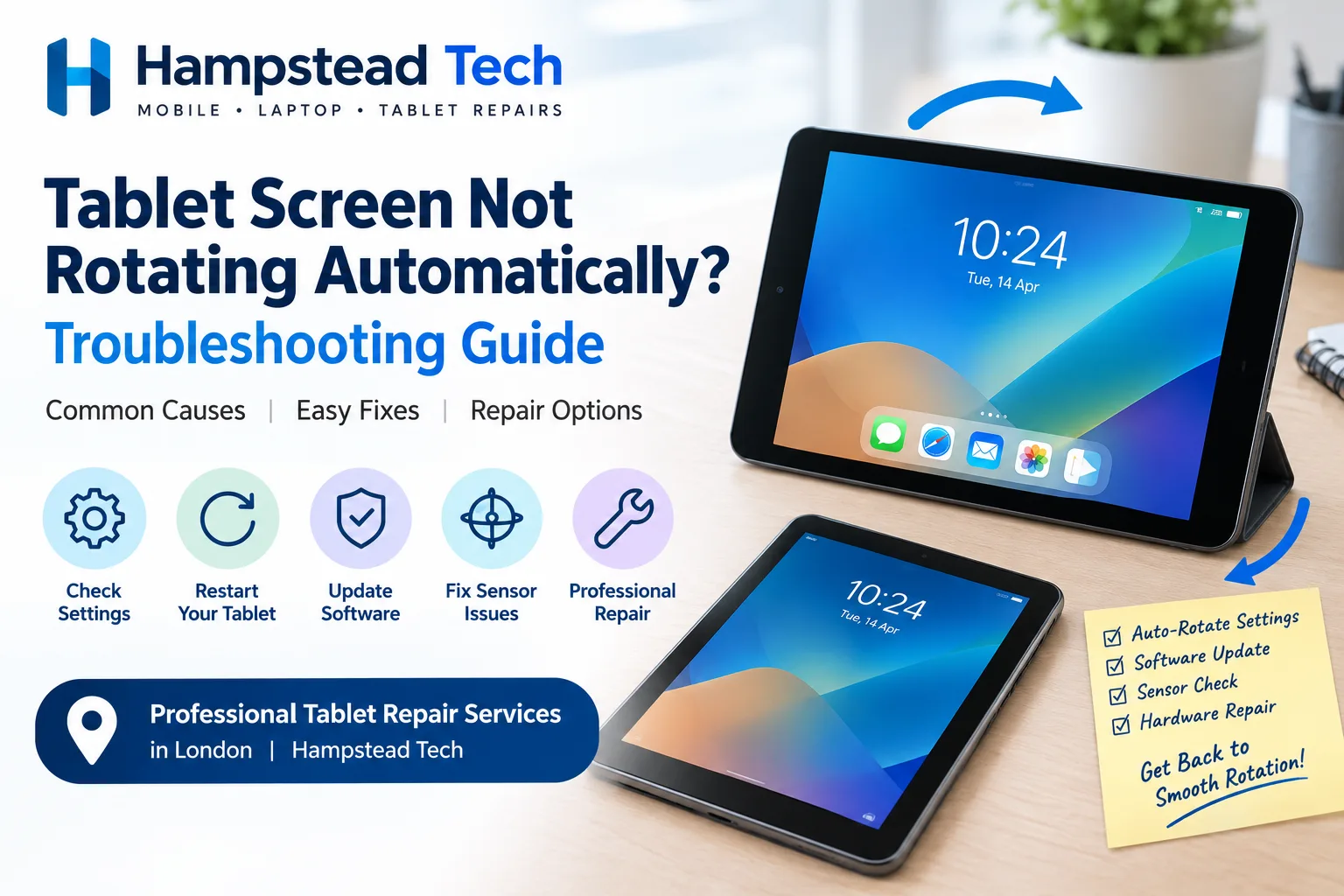
1. Common Reasons Why a Tablet Screen Does Not Rotate Automatically
Understanding the cause of the problem can help you find the right solution without replacing unnecessary components.
Screen Rotation Lock Is Enabled
One of the most common reasons a tablet screen does not rotate is that the rotation lock feature is enabled.
Most tablets include a setting that allows users to lock the screen in portrait or landscape mode. When this feature is activated, the display will remain in its current orientation even when you turn the device sideways.
On Android tablets, check the Auto-rotate option in the Quick Settings panel.
For iPads, open Control Centre and check whether the Rotation Lock feature is enabled.
Temporary Software Glitches
Sometimes, temporary operating system errors can interfere with automatic screen rotation.
You may notice that your tablet stops responding to orientation changes after using certain applications or switching between different functions.
Restarting the device can often resolve minor software problems and restore normal functionality.
Faulty Accelerometer or Gyroscope Sensor
Tablets use motion sensors, including accelerometers and gyroscopes, to detect changes in device orientation.
These sensors help the operating system determine whether the tablet is being held vertically or horizontally.
If a sensor becomes faulty due to physical damage, internal component failure, or other technical issues, the screen may stop rotating correctly.
In such cases, professional diagnosis may be necessary.
Application Compatibility Issues
Not every tablet application supports both portrait and landscape orientations.
Some apps are designed to operate in a specific orientation, which means the screen may remain fixed even when automatic rotation is enabled.
If your tablet rotates normally in other applications, the problem may be related to the app rather than the device itself.
Outdated Operating System
An outdated operating system can sometimes cause compatibility issues and unexpected software behaviour.
If your tablet has pending system updates, installing the latest compatible version may help resolve bugs affecting screen rotation.
Physical Damage
Accidental drops, strong impacts, and liquid exposure can damage internal sensors or other components responsible for detecting device movement.
Even if the tablet display appears undamaged, internal hardware problems may affect automatic rotation.
2. How to Fix a Tablet Screen That Is Not Rotating
Before arranging a repair, try these basic troubleshooting methods.
Check the Auto-Rotate Setting
Start by making sure automatic rotation is enabled.
For Android tablets:
Swipe down from the top of the screen to open Quick Settings.
Find the Auto-rotate option.
If Portrait or Landscape Lock is enabled, tap the setting to change it to Auto-rotate.
Turn your tablet sideways and check whether the screen responds.
For Apple iPads:
Swipe down from the top-right corner to open Control Centre.
Find the Rotation Lock button.
Make sure rotation lock is switched off.
Open an application that supports both orientations and rotate your iPad.
These settings can vary slightly depending on your tablet model and software version.
Restart Your Tablet
Restarting your tablet is a simple way to resolve temporary software problems.
Save your work, switch off the device, wait a few seconds, and turn it back on.
Once the tablet restarts, open a compatible application and test automatic rotation again.
Test Different Applications
Open applications such as a web browser, gallery, or video player to check whether the screen rotates correctly.
If rotation works in some applications but not others, the issue may be caused by application compatibility or individual app settings.
Update Your Tablet Software
Check whether a software update is available for your device.
On most Android tablets, open Settings and look for Software Update or System Update.
On an iPad, go to Settings > General > Software Update.
Install available compatible updates and check whether the rotation problem has been resolved.
Check for Physical Damage
Inspect your tablet for signs of accidental damage, including cracks, dents, or evidence of liquid exposure.
If the problem started immediately after dropping the device, an internal sensor or connection may have been affected.
Avoid opening the tablet yourself, as internal components can be easily damaged.
3. Signs Your Tablet May Have a Hardware Problem
If basic troubleshooting does not resolve the issue, the problem may involve an internal hardware component.
Look out for these warning signs:
No automatic rotation: The screen remains in one orientation regardless of how you hold the tablet.
Incorrect rotation: The display changes orientation unexpectedly or responds incorrectly.
Sensor problems: Motion-related features and applications do not respond properly.
Recent physical damage: The issue started after dropping or damaging the tablet.
Intermittent rotation: Automatic rotation works occasionally but stops responding without warning.
Other hardware issues: Additional problems appear after liquid exposure or physical impact.
These symptoms may indicate a problem with the tablet’s motion sensors, internal connections, or motherboard.
4. Professional Repair Options for Tablet Screen Rotation Problems
If the issue continues after troubleshooting, professional inspection can help identify the underlying fault.
Depending on the tablet model and the extent of the damage, several repair options may be available.
Motion Sensor Inspection and Repair
A technician can examine the accelerometer and gyroscope to determine whether the sensors are detecting movement correctly.
If a sensor is faulty, the technician can assess whether it requires replacement or whether another internal component is responsible.
Internal Connection Repair
Sometimes, internal connectors or circuit connections become loose following an accidental impact.
A professional technician can inspect the relevant connections and repair or reconnect affected components where possible.
Software Troubleshooting
If the problem is caused by corrupted software or system errors, professional troubleshooting may help restore normal functionality.
This may involve software diagnostics, system updates, or other appropriate software repairs.
Always back up important data before considering advanced software procedures.
Motherboard Repair
In more serious cases, damage to the motherboard may interfere with communication between the motion sensors and the operating system.
A technician can inspect the affected circuitry and determine whether component-level repair is possible.
Tablet Component Replacement
If an internal sensor or other hardware component is damaged beyond repair, replacement may be necessary.
The correct replacement part should be compatible with your tablet’s exact make and model.
5. Can You Continue Using a Tablet Without Automatic Rotation?
Yes. A tablet can usually continue working even when automatic screen rotation stops functioning.
You may still be able to use the device in portrait or landscape mode, depending on the available settings and application support.
However, if the problem is caused by physical damage or an internal hardware fault, other functions may eventually be affected.
It is worth arranging an inspection if the issue started after an accident or is accompanied by additional hardware problems.
6. How to Prevent Tablet Screen Rotation Problems
Although some hardware failures are unavoidable, proper device care can reduce the risk of future problems.
Follow these practical tips:
Use a protective case to reduce damage from accidental drops.
Avoid exposing your tablet to excessive moisture.
Keep the operating system updated.
Avoid installing applications from untrusted sources.
Handle your tablet carefully and avoid unnecessary pressure.
Do not expose the device to extreme temperatures.
Arrange professional inspection if motion-related features stop working.
Regular maintenance and careful handling can help protect your tablet’s internal components and improve its overall lifespan.
7. Why Choose Professional Tablet Repair Services?
A tablet screen that refuses to rotate may seem like a minor software issue, but persistent problems can sometimes indicate internal hardware damage.
Professional technicians can examine the software settings, test motion sensors, inspect internal connections, and identify the most suitable repair option.
At Hampstead Tech, customers can explore professional tablet and mobile device repair services in London. Whether your tablet has screen rotation problems, display issues, or other hardware faults, professional assistance can help identify the cause and recommend an appropriate solution.
Getting the problem checked early can help prevent further complications and keep your tablet working properly.
8. Frequently Asked Questions
Why is my tablet screen not rotating automatically?
The problem may be caused by an enabled rotation lock, software glitches, application restrictions, outdated software, or a faulty motion sensor.
How do I turn on automatic rotation on my Android tablet?
Swipe down to open Quick Settings and tap the Auto-rotate option. Make sure the device is not locked in portrait or landscape mode.
Why does my iPad screen stay in portrait mode?
Your iPad may have Rotation Lock enabled. Open Control Centre and turn off the Rotation Lock button. Also, check whether the application supports landscape orientation.
Can a damaged accelerometer stop screen rotation?
Yes. The accelerometer helps detect the tablet’s orientation. If it becomes damaged or stops working correctly, automatic screen rotation may fail.
Can a software update fix tablet rotation problems?
Yes. If the issue is caused by a software bug or compatibility problem, installing an available system update may help restore normal rotation functionality.
How much does tablet screen rotation repair cost?
The cost depends on the tablet model and the underlying fault. Software troubleshooting may be less expensive than replacing an internal sensor or repairing motherboard components. A technician can provide an estimate after inspecting the device.
Conclusion
A tablet screen that does not rotate automatically can make everyday activities less convenient. While the problem is often related to rotation lock settings or temporary software issues, faulty motion sensors and internal hardware damage can also be responsible.
Start by checking the rotation settings, restarting your tablet, testing different applications, and installing available software updates. If the problem continues, professional diagnosis can help determine whether a hardware repair is necessary.
For professional tablet repair assistance in London, visit Hampstead Tech and explore the available repair services.
Need this fixed?
We repair these at our workshop at 47 Hampstead High Street, London NW3 1QG. Read more about iPad screen replacement, or book a repair online.