
Introduction
A laptop is an essential tool for work, education, gaming, and everyday activities. However, over time, you may notice that your laptop takes longer to start, applications run slowly, or the system freezes when multiple programs are open. Before investing in a brand-new laptop, consider whether upgrading your RAM or SSD could solve the problem.
Both RAM and SSD upgrades can improve laptop performance, but they serve different purposes. Understanding the difference between them can help you choose the right upgrade for your needs and budget.
In this blog, we will explain when you should upgrade your laptop RAM or SSD, the signs to look for, and how to decide which option is best for your device.
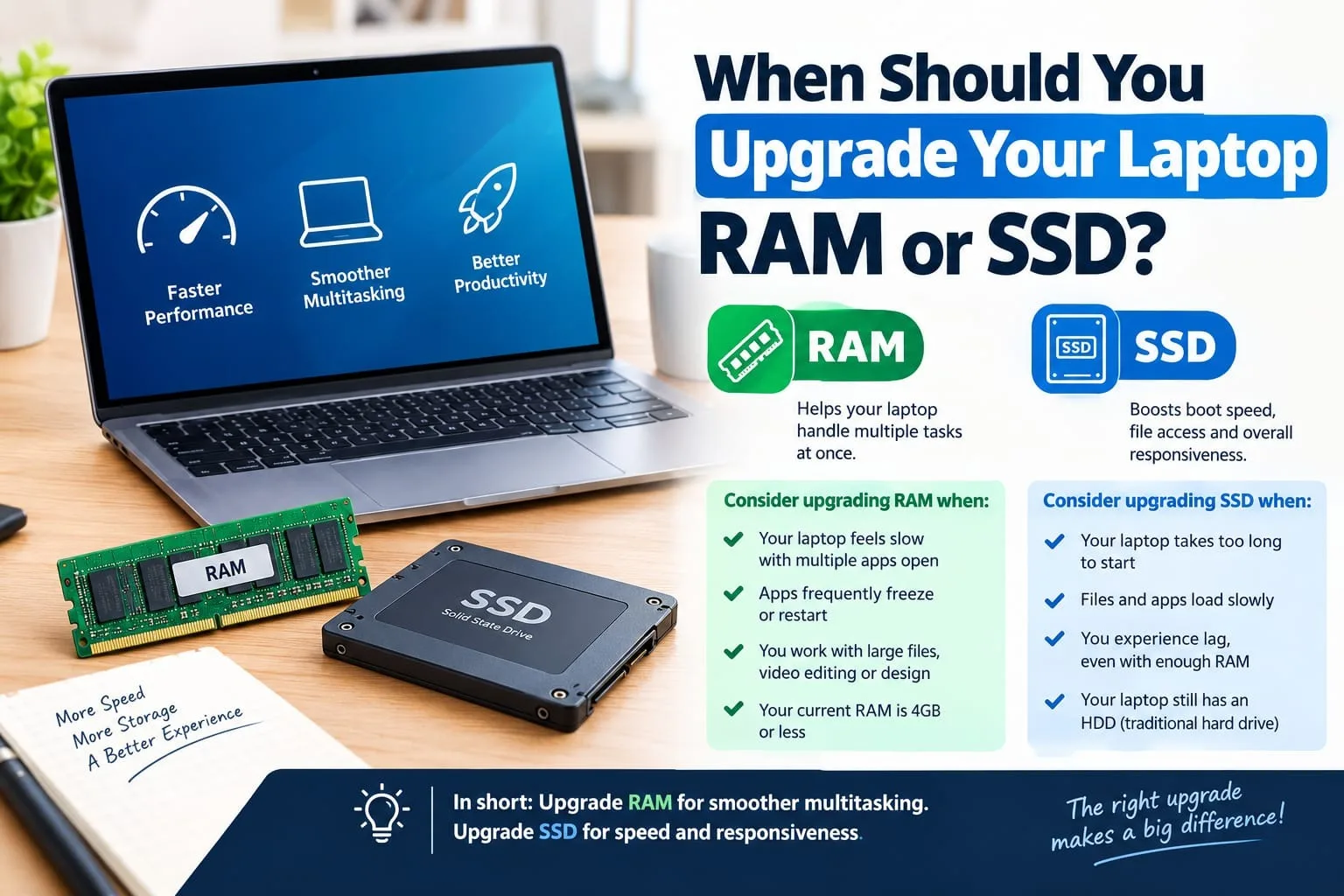
Understanding the Difference Between RAM and SSD
Before choosing an upgrade, it is important to understand what RAM and SSD do.
What Is RAM?
RAM (Random Access Memory) is your laptop’s short-term working memory. It temporarily stores the data your system needs while running applications and performing tasks.
For example, when you open a web browser with multiple tabs, edit large documents, or run demanding software, your laptop uses RAM to keep those tasks running smoothly.
Upgrading RAM can help when:
Your laptop slows down while multitasking.
Applications freeze when several programs are open.
Your system frequently uses high amounts of memory.
You work with photo editing, video editing, programming, or other memory-intensive applications.
What Is an SSD?
An SSD (Solid-State Drive) is a storage device that holds your operating system, applications, documents, photos, videos, and other files. Unlike traditional hard disk drives (HDDs), SSDs use flash memory and have no moving mechanical parts.
An SSD can significantly improve how quickly your laptop starts, opens applications, and accesses stored files, especially when replacing an older HDD.
Upgrading your SSD can help when:
Your laptop takes a long time to start.
Applications load slowly from storage.
Your current drive is almost full.
You need more space for software, games, and files.
Your existing HDD or SSD is showing signs of failure.
5 Signs You Should Upgrade Your Laptop RAM
1. Your Laptop Slows Down During Multitasking
If your laptop becomes sluggish whenever you open multiple browser tabs, attend video meetings, and work with documents simultaneously, you may need more RAM.
When available memory runs low, the operating system may rely more heavily on storage to handle active tasks. This can make the system feel slow, particularly when the storage device is also slow.
Increasing RAM can improve multitasking performance, provided your laptop supports the upgrade and insufficient memory is the actual cause.
2. You Frequently Experience Freezing or Lag
Does your laptop freeze when switching between applications or take several seconds to respond to simple commands?
Insufficient RAM can contribute to this problem, especially when memory usage is consistently high. However, freezing can also result from outdated drivers, overheating, background applications, or storage problems.
Check your system’s memory usage before purchasing additional RAM to make sure an upgrade is likely to help.
3. You Use Demanding Software
Some applications require considerably more memory than everyday browsing or word processing.
Examples include:
Video editing software
Graphic design and photo editing tools
Virtual machines
Software development environments
Modern games and professional applications
For basic tasks, 8GB of RAM may be sufficient. For comfortable multitasking, 16GB is a practical target for many users, while 32GB or more may be useful for demanding professional workloads.
Your ideal capacity depends on the software you use and its actual memory requirements.
4. Your Memory Usage Is Frequently Near Maximum
You can check your RAM usage through Task Manager on Windows.
Press Ctrl + Shift + Esc, open the Performance section, and select Memory. If memory usage regularly approaches capacity while you perform normal tasks, adding RAM may improve responsiveness.
On macOS, open Activity Monitor and select the Memory tab. Pay attention to memory pressure and swap usage rather than relying on a single percentage.
Remember that high memory usage alone does not always mean you need an upgrade. Modern operating systems use available memory to improve performance.
5. You Want Better Performance Without Replacing Your Laptop
If your laptop works well overall but struggles with modern applications, a RAM upgrade may be a cost-effective way to extend its useful life.
However, check whether the RAM is upgradeable before buying anything. Some laptops have memory soldered directly onto the motherboard, which cannot be replaced through a conventional RAM upgrade.
5 Signs You Should Upgrade Your Laptop SSD
1. Your Laptop Takes Too Long to Start
If your laptop uses an older HDD, upgrading to an SSD is often one of the most noticeable performance improvements you can make.
An SSD can reduce boot times, speed up application launches, and make the operating system feel more responsive.
If your laptop already has an SSD, however, slow startup may be caused by startup applications, insufficient memory, malware, or other system issues.
2. Your Storage Space Is Almost Full
A nearly full drive can make managing files difficult and may interfere with updates or applications that need temporary space.
If you regularly receive low-storage warnings, struggle to install software, or have to delete files to make room for new ones, consider upgrading to a larger SSD.
A 500GB SSD may suit many everyday users, while a 1TB or larger drive can be a better choice for gaming, creative work, and large media libraries.
Choose a capacity based on your current storage use and expected future needs.
3. Applications and Files Take Too Long to Load
An SSD upgrade can improve the time it takes to launch applications, transfer files, and load projects when storage speed is the bottleneck.
This is particularly beneficial if you are replacing an HDD. Moving from an older SSD to a newer one may offer a smaller improvement in everyday tasks, depending on the drives and your workload.
4. You Work With Large Files
If you regularly edit videos, handle high-resolution images, work with large datasets, or transfer substantial amounts of data, a faster or larger SSD may improve your workflow.
The benefit depends on the task. Storage speed can make a difference when reading or writing large files, but your processor, RAM, software, and other components may still limit overall performance.
Before upgrading, check whether your laptop supports SATA SSDs, M.2 SATA drives, or M.2 NVMe drives. These formats are not universally interchangeable.
5. Your Existing Drive Shows Signs of Failure
Frequent disk errors, unusual system slowdowns, disappearing files, or drive-health warnings may indicate a storage problem.
If you suspect drive failure, back up your important files as soon as possible. Do not wait for the drive to stop working completely.
Check the drive’s health using an appropriate diagnostic tool. If the drive is failing, replacing it is more important than simply choosing a faster model.
RAM vs. SSD: Which Upgrade Should You Choose?
The right choice depends on the problem you want to solve.
Keep in mind that no single upgrade fixes every performance issue. A laptop with an older processor, thermal problems, or a failing motherboard may remain slow even after you install new RAM or an SSD.
Can You Upgrade Both RAM and SSD?
Yes, if your laptop supports both upgrades.
Upgrading RAM and SSD together can provide a substantial improvement when your system has limited memory and an older or undersized storage drive.
For example, imagine a laptop with 8GB of RAM and a 256GB HDD. Upgrading to 16GB of RAM and a 1TB SSD could improve multitasking, reduce loading times, and provide considerably more storage space.
The results will vary depending on the laptop’s processor, software, workload, and upgrade compatibility.
If your budget only allows one upgrade, identify your biggest performance problem first. An SSD is often the best starting point for a laptop that still uses an HDD, while additional RAM may be more useful when memory capacity is the main limitation.
How to Check Whether Your Laptop Supports an Upgrade
Before buying RAM or an SSD, follow these steps:
Step 1: Identify your laptop model.
Find the exact model number on the device, in system information, or on the manufacturer’s support website.
Step 2: Check the RAM specifications.
Confirm the supported memory type, maximum capacity, number of slots, and whether the existing memory is soldered.
Step 3: Check SSD compatibility.
Determine whether your laptop supports a 2.5-inch SATA drive, M.2 SATA, M.2 NVMe, or another storage configuration. Check the physical dimensions and supported capacity as well.
Step 4: Back up your data.
Back up important documents, photos, and other files before making hardware changes. If you replace your system drive, plan how you will reinstall the operating system or clone the existing drive.
Step 5: Compare the cost of upgrading with replacing the laptop.
If your laptop is still suitable for your needs, an upgrade may be more economical than buying a new device. However, if several major components are outdated or the machine cannot support your required software, replacement may offer better long-term value.
If you are not comfortable opening your laptop, consult a qualified technician.
Is It Better to Upgrade RAM or SSD First?
For most users, the answer depends on their existing hardware.
If your laptop has an HDD: Replacing it with a compatible SSD is often the most noticeable first upgrade.
If your laptop has 8GB of RAM and regularly runs out of memory: Increasing it to 16GB may improve multitasking.
If your laptop has limited storage: A larger SSD may be the better choice.
If you use demanding professional software: You may benefit from both upgrades, depending on the software’s requirements.
There is no universal upgrade that is best for every laptop. The most effective choice is the one that addresses your actual performance bottleneck.
Final Thoughts
Upgrading your laptop RAM or SSD can be a practical way to improve performance, increase storage capacity, and extend the life of your device.
RAM is particularly important for multitasking and memory-intensive applications, while an SSD improves storage responsiveness and provides more room for your files.
Before making a purchase, check your laptop’s specifications, monitor its performance, and identify the source of the slowdown. Choosing the right upgrade can help you get better performance without spending money unnecessarily.
Need help choosing the right upgrade? Check your laptop’s exact model, current RAM capacity, and storage type before purchasing new components. A compatible upgrade can make a meaningful difference to your everyday computing experience.
Suggested SEO title: When Should You Upgrade Your Laptop RAM or SSD?
Meta description: Discover when to upgrade your laptop RAM or SSD, learn the signs of insufficient memory or storage, and find out which upgrade offers the best performance improvement.
Suggested URL slug: /when-to-upgrade-laptop-ram-or-ssd/
Primary keyword: When should you upgrade your laptop RAM or SSD?
Related keywords: Laptop RAM upgrade, laptop SSD upgrade, RAM vs. SSD, improve laptop performance, upgrade laptop storage.
Need this fixed?
We repair these at our workshop at 47 Hampstead High Street, London NW3 1QG. Read more about laptop repair in Hampstead, or book a repair online.