
Introduction
Have you ever charged your phone to 100% in the morning, only to find the battery nearly empty by lunchtime? You’re not alone. Fast battery drain is one of the most common smartphone problems, affecting both Android and iPhone users.
Your phone battery naturally loses capacity over time, but sudden or excessive battery drain can also result from background apps, high screen brightness, poor network signals, outdated software, and other everyday habits.
The good news is that most battery-draining issues can be identified and improved without replacing your phone.
In this guide, we’ll explore 10 common reasons why your phone battery is draining so fast and share practical tips to help your battery last longer throughout the day.
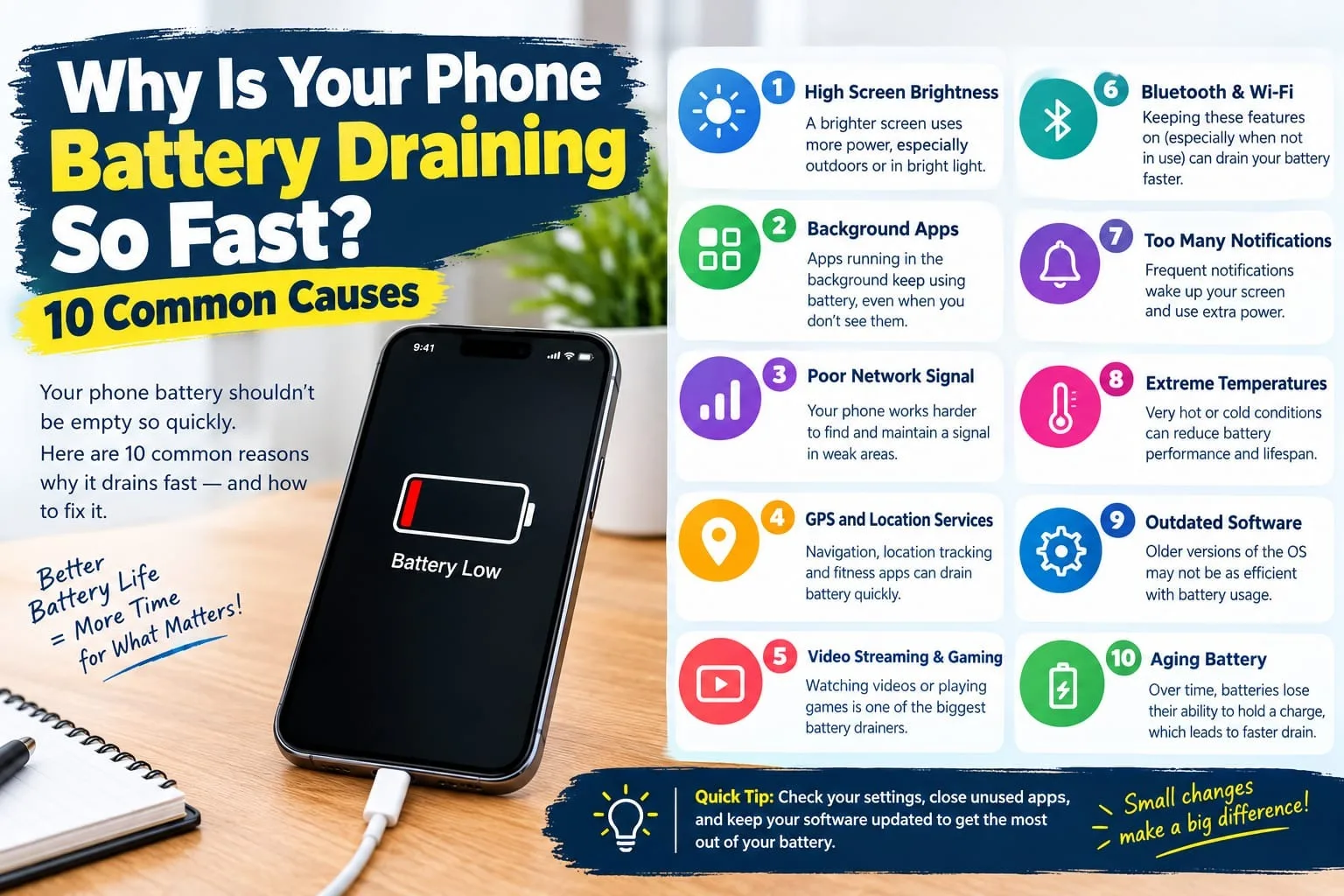
1. Too Many Apps Running in the Background
One of the biggest reasons your phone battery drains quickly is background app activity. Even when you’re not actively using an application, it may continue refreshing content, checking for updates, syncing data, or sending notifications.
Social media apps, email services, messaging platforms, and navigation apps can consume power while running in the background.
How to fix it:
Check your phone’s battery settings to identify apps using the most power.
Restrict background activity for apps that don’t need constant updates.
Close or limit unnecessary apps that use excessive resources.
Disable background app refresh where it’s not needed.
You don’t need to force-close every app constantly. Focus on applications that show unusually high background battery usage.
2. High Screen Brightness
Your phone’s display is one of its major power consumers. Keeping brightness at maximum levels for extended periods can significantly increase battery consumption, especially on large, high-resolution screens.
Watching videos, playing games, and browsing social media with the screen set to maximum brightness can make the battery drain even faster.
How to fix it:
Enable automatic or adaptive brightness.
Reduce brightness when you’re indoors.
Shorten the screen timeout duration.
Use dark mode on OLED displays, where it can reduce power consumption.
Small adjustments to your display settings can make a noticeable difference in everyday battery life.
3. Poor Cellular Signal and Weak Network Coverage
Have you noticed your phone losing battery faster in elevators, basements, rural areas, or buildings with thick walls?
When cellular reception is weak, your phone may use more power searching for a signal and maintaining its connection to the mobile network. Switching between different network conditions can also contribute to battery drain.
This is particularly noticeable when you’re traveling or spending time in areas with unreliable coverage.
How to fix it:
Connect to a reliable Wi-Fi network when available.
Use Wi-Fi calling if your carrier supports it.
Switch to airplane mode when you have no signal and don’t need cellular connectivity.
Consider using a less power-intensive network mode if your phone supports it and faster connectivity isn’t necessary.
If your phone frequently struggles to maintain a signal, network conditions may be a bigger factor than your installed apps.
4. Location Services Are Always On
Location services help apps provide navigation, weather updates, location sharing, and nearby recommendations. However, frequent GPS use and continuous location tracking can consume additional battery power.
Navigation apps are especially demanding because they may use GPS, mobile data, the display, and location updates simultaneously.
Some applications may also access your location when you’re not actively using them.
How to fix it:
Review which apps have permission to access your location.
Set location access to “While Using the App” where appropriate.
Disable unnecessary background location tracking.
Turn off location sharing when you no longer need it.
You don’t have to disable location services entirely. Adjusting permissions for individual apps is usually a more practical approach.
5. Too Many Notifications and Frequent Screen Wake-Ups
Every time your screen lights up to display a notification, your phone uses some energy. Frequent alerts can also interrupt what would otherwise be idle time.
Messaging apps, social media platforms, shopping applications, games, and promotional services may send numerous notifications throughout the day.
Although a single notification uses relatively little power, constant screen wake-ups and associated background activity can add up.
How to fix it:
Disable notifications from nonessential apps.
Turn off promotional alerts you don’t need.
Use Focus, Do Not Disturb, or similar modes when appropriate.
Reduce unnecessary lock-screen notifications.
A quieter phone can mean fewer interruptions and better battery efficiency.
6. An Aging or Worn-Out Battery
Sometimes, the problem isn’t your settings or apps. It’s the battery itself.
Most modern smartphones use lithium-ion batteries, which gradually lose their ability to hold a charge as they age. Battery wear is influenced by charging cycles, temperature, usage patterns, and time.
An older battery may drain quickly even when you’re performing simple tasks. Your phone might also shut down unexpectedly or show a noticeable drop in battery percentage.
How to fix it:
Check battery health if your phone provides that feature.
Look for service or replacement recommendations in your device settings.
Avoid exposing your phone to excessive heat.
Consider a professional battery replacement if the battery has significantly deteriorated.
For iPhones, check Settings → Battery → Battery Health or the corresponding battery health menu on your iOS version. On Android, battery health options vary by manufacturer and model.
If the battery is worn out, changing your settings may help only slightly. A replacement may be the most effective solution.
7. Outdated Software or Buggy Applications
Software updates often include performance improvements, security fixes, and bug repairs. If your phone or an installed app has a software issue, it may use more power than expected.
A buggy application can repeatedly run background processes, sync continuously, or keep your phone from entering a low-power idle state.
Battery usage may also temporarily increase after a major operating system update while your phone completes background tasks such as indexing files and organizing photos.
How to fix it:
Install stable operating system updates when available.
Update apps through your official app store.
Restart your phone if you notice unusual battery behavior.
Check battery usage after installing a new app or update.
If the battery drain started immediately after installing a particular application, investigate that app first. Avoid assuming that every software update will instantly improve battery life.
8. Constant Use of Power-Hungry Apps
Some apps require considerably more energy than others. Video streaming, mobile gaming, video calls, social media feeds, and navigation can all increase battery consumption.
These activities may combine several demanding tasks, including processing graphics, maintaining internet connectivity, playing audio, and keeping the display active.
For example, a graphically intensive game can drain your battery much faster than reading a text message or checking your calendar.
How to fix it:
Reduce extended gaming sessions when battery life is important.
Lower graphics settings in demanding games.
Download music or videos over Wi-Fi when practical.
Limit long video calls when you’re away from a charger.
Check battery usage to identify your most demanding applications.
High battery consumption during intensive use isn’t necessarily a sign of a faulty phone. The important question is whether the drain is unusually high for the activity you’re performing.
9. Extreme Temperatures
Temperature has a major impact on smartphone battery performance.
Excessive heat can accelerate battery aging and may cause your phone to limit performance or charging. Very cold conditions can temporarily reduce available battery capacity and cause the battery percentage to drop more quickly than expected.
Leaving your phone in direct sunlight, a hot car, or near a heat source can make the problem worse.
How to fix it:
Keep your phone away from direct sunlight and excessive heat.
Avoid leaving it in a parked car on hot days.
Remove a thick case if your phone becomes unusually hot while charging and the manufacturer recommends doing so.
Let the phone return to a normal temperature before heavy use or charging.
If your phone repeatedly becomes very hot during light use, investigate the cause rather than treating overheating as normal.
10. Unnecessary Connectivity Features
Wi-Fi, Bluetooth, mobile data, personal hotspots, and nearby-device features help your phone stay connected. However, certain connectivity activities can increase power consumption, particularly when they’re used continuously or under demanding conditions.
For example, running a personal hotspot while connected to mobile data can consume substantial power. Streaming music over Bluetooth while using cellular data also adds to overall energy use.
That doesn’t mean you should turn off every wireless feature. The impact depends on your phone, signal conditions, and how you’re using it.
How to fix it:
Turn off your personal hotspot when nobody needs it.
Disable Bluetooth when you aren’t using connected devices, if convenient.
Disconnect from unnecessary accessories.
Prefer reliable Wi-Fi for data-heavy activities when practical.
Use your phone’s battery saver mode when you need to extend battery life.
Focus on features you’re actively using rather than switching off essential connections that make little difference to your particular device.
Bonus Tips to Make Your Phone Battery Last Longer
Beyond these ten common causes, a few everyday habits can help you get more time between charges.
Enable Battery Saver or Low Power Mode: This typically limits background activity and selected performance-intensive features.
Avoid unnecessary heat while charging: Heat can accelerate battery aging.
Use reliable charging accessories: Choose compatible chargers and cables from reputable manufacturers.
Review battery usage regularly: Look for apps consuming unusually large amounts of energy.
Reduce unnecessary screen activity: Shorter screen time and fewer wake-ups can improve battery life.
Check for sudden changes: A sudden drop in battery life may indicate a software issue, a misbehaving app, or battery deterioration.
Remember that you don’t need to follow every battery-saving tip all the time. Choose the changes that address your phone’s actual usage patterns.
How to Check What’s Draining Your Phone Battery
If you’re unsure what’s causing the problem, start with your phone’s built-in battery usage report.
On an iPhone
Open Settings.
Tap Battery.
Review battery usage by app and activity.
Look for apps with unexpectedly high usage, particularly background activity.
Check battery health if the option is available.
On an Android Phone
Open Settings.
Select Battery or Battery Usage.
Review which apps have consumed the most power.
Check for background usage or unusual activity.
Use the available battery optimization settings for apps that don’t need unrestricted background access.
Menu names vary between Android manufacturers and operating system versions.
A useful tip: Compare battery consumption with your actual usage. An app that uses substantial power during several hours of gaming may be behaving normally, while an app consuming significant energy when you haven’t opened it may deserve further investigation.
When Should You Consider Replacing Your Phone Battery?
Not every battery problem can be fixed through settings. You may need professional battery service if:
Your phone loses charge unusually quickly despite light use.
The battery health indicator reports significant deterioration.
Your phone shuts down unexpectedly even when it shows remaining charge.
The battery percentage changes erratically.
Your phone has become noticeably less reliable between charges.
If your phone’s battery is swollen, the screen or back cover is lifting, or the device shows signs of battery damage, stop using and charging it. Arrange professional service and don’t attempt to puncture or compress the battery.
Frequently Asked Questions
Why does my phone battery drain so fast even when I’m not using it?
Background apps, weak cellular reception, frequent synchronization, location tracking, and software problems can consume power while your phone is idle. An aging battery may also lose charge faster than expected. Check your battery usage report to identify the most likely cause.
Why does my phone battery drop from 100% to 80% so quickly?
This can happen because of heavy app usage, poor network coverage, high display brightness, or reduced battery capacity. Battery percentage readings can also be affected by temperature and battery condition. If the drop happens repeatedly during light use, investigate battery health and background activity.
Does charging your phone overnight damage the battery?
Modern smartphones include charging management features designed to reduce the risks associated with overnight charging. However, prolonged exposure to heat can accelerate battery aging. Use a reputable, compatible charger and enable optimized charging if your phone supports it.
Does dark mode save battery?
Dark mode can save battery power on phones with OLED or AMOLED displays because black pixels consume very little power or may be switched off. The savings depend on the display technology, brightness, and content. The effect is generally smaller on traditional LCD screens.
How long should a phone battery last in a day?
Battery life depends on the phone model, battery capacity, age, signal strength, screen time, and workload. Some phones can comfortably last a full day, while intensive gaming, streaming, or hotspot use may require charging sooner. Compare your experience with your phone’s typical performance rather than relying on a single universal benchmark.
Final Thoughts
If your phone battery is draining too fast, the cause may be something as simple as high screen brightness or as significant as an aging battery.
The best place to start is your phone’s battery usage report. Identify the apps and activities consuming the most power, review your background and location settings, and make a few targeted adjustments. If the problem persists, check for software issues and battery deterioration.
The key is to identify the cause before replacing the battery or buying a new phone. With the right adjustments, you may be able to improve battery life, reduce unnecessary charging, and get more value from your current device.
If your phone suddenly starts losing charge much faster than usual, don’t ignore the change. A little troubleshooting can help you determine whether the issue comes from your habits, your software, or the battery itself.
Need this fixed?
We repair these at our workshop at 47 Hampstead High Street, London NW3 1QG. Read more about phone battery replacement, or book a repair online.