
Introduction
Have you ever tried to take a photo, download an app, or install a software update, only to see the frustrating message “Storage Almost Full”? If so, you’re not alone. Phone storage can fill up surprisingly quickly, especially when you save photos, record videos, download apps, and receive files through messaging platforms.
When your phone runs out of space, it can become harder to install updates, save new files, and manage everyday tasks. Fortunately, you don’t always need to buy a new phone to solve the problem. With a few simple steps, you can free up storage and keep your device running smoothly.
In this guide, Hampstead Tech explains why your phone storage gets full and shares practical ways to reclaim space on your iPhone or Android device.
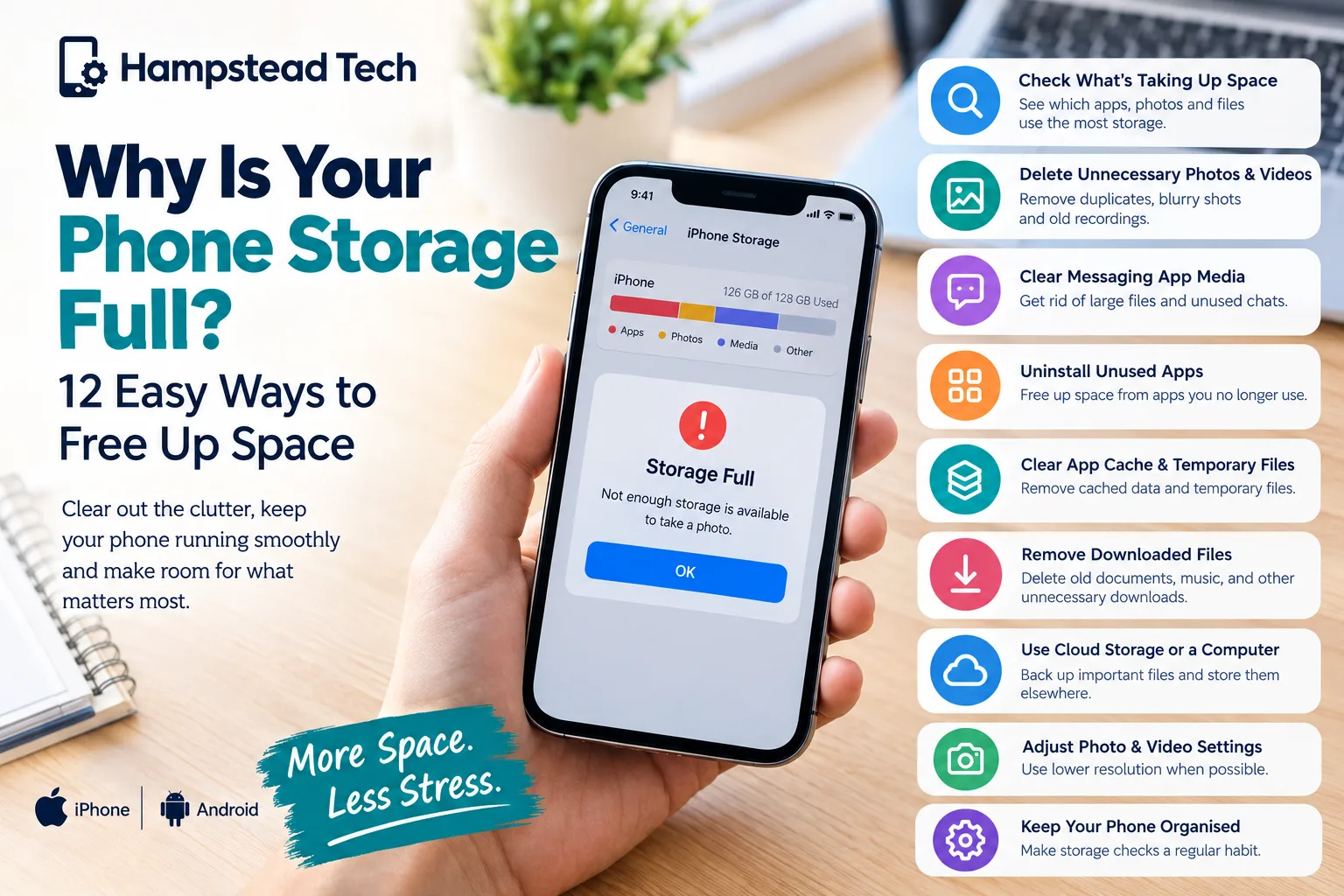
What Does It Mean When Your Phone Storage Is Full?
Phone storage is the internal space your device uses to keep its operating system, apps, photos, videos, messages, documents, and other files.
Every phone has a limited amount of storage. Depending on your device, you might have 64GB, 128GB, 256GB, or more. However, some of this space is already occupied by the operating system and pre-installed applications.
As you use your phone, additional data accumulates. Photos, downloaded videos, large applications, offline files, and temporary app data can gradually consume the remaining space.
When storage becomes nearly full, you may experience problems such as:
Being unable to take new photos or record videos.
Apps failing to download or update.
Software updates requiring more available space.
Difficulty downloading documents or attachments.
Apps becoming less responsive in some situations.
Problems saving files or creating backups.
The good news is that identifying what’s using your storage is usually the first step towards fixing the issue.
1. Check What’s Taking Up Space on Your Phone
Before deleting anything, find out which files and applications are consuming the most storage. This helps you focus on the areas where you can recover the most space.
On an iPhone
Follow these steps:
Open Settings.
Tap General.
Select iPhone Storage.
Wait for the storage breakdown to load.
Review the apps and categories using the most space.
Your iPhone may also provide recommendations for freeing up storage, such as reviewing large attachments or offloading unused apps.
On an Android phone
The exact steps vary by manufacturer, but the process is generally similar:
Open Settings.
Select Storage or search for “Storage” in Settings.
Review the breakdown of apps, images, videos, documents, and other files.
Open the categories that are consuming the most space.
Use your phone’s built-in storage management recommendations where available.
Helpful tip: Start with the largest categories. Removing a few unnecessary videos or large downloads can often free up more space than deleting dozens of small files.
2. Delete Unnecessary Photos and Videos
Photos and videos are among the most common reasons phone storage becomes full. Modern smartphones capture high-resolution images and detailed videos, which can take up considerable space.
Over time, your gallery may contain duplicate photos, blurry images, screenshots, old recordings, and videos you no longer need.
To free up space:
Delete duplicate or unwanted photos.
Remove blurry pictures and accidental screenshots.
Review large videos you no longer need.
Delete unnecessary screen recordings.
Sort through old downloads saved to your gallery.
If you have important photos or videos, back them up before deleting them.
You can use a trusted cloud storage service or transfer files to a computer or external storage device. Make sure the backup has completed and your files are accessible before removing the originals.
Also, remember that deleting a photo from a synchronised photo library may remove it from other connected devices. Understand your backup and synchronisation settings before proceeding.
3. Clear Your Messaging App Media
Messaging apps can quietly consume gigabytes of storage. Images, videos, voice notes, documents, and forwarded files accumulate as conversations continue.
Group chats are particularly likely to contain large amounts of media that you may not need to keep.
WhatsApp storage management
WhatsApp includes a storage management feature that helps you identify large files and review media taking up space.
Depending on your device and app version, you can generally:
Open WhatsApp.
Go to Settings.
Select Storage and Data.
Tap Manage Storage.
Review large files and media from individual chats.
Delete items you no longer need.
Be careful when deleting shared files, as you may want to keep certain photos, documents, or voice messages.
You can also adjust automatic media downloads to prevent every image or video from being saved to your device.
Similar storage management options may be available in other messaging apps.
4. Uninstall Apps You No Longer Use
It’s easy to accumulate apps that seemed useful when you downloaded them but are rarely opened.
Games, video editing tools, shopping apps, and other large applications can occupy significant amounts of storage. Some also store additional downloads and cached data.
Review your installed apps and ask yourself whether you still need each one.
To remove an app on an iPhone:
Press and hold the app icon.
Select Remove App.
Choose Delete App if you want to remove it completely.
On Android, press and hold the app icon and select Uninstall, or open the app list in Settings and uninstall it from there.
If you use an iPhone, you can also enable or use Offload Unused Apps. This removes the app itself while retaining its documents and data, allowing you to reinstall it later.
Before uninstalling an app, check whether it contains important locally stored files or information that hasn’t been backed up.
5. Clear App Cache and Temporary Files
Apps often save temporary files to help content load faster. These files are known as cached data.
Over time, cached files can grow, particularly in browsers, social media apps, streaming platforms, and other applications that display large amounts of content.
Clearing unnecessary cached data may recover storage without removing your essential files.
Clearing cache on Android
On many Android phones:
Open Settings.
Tap Apps.
Select the app you want to manage.
Open Storage or Storage and cache.
Tap Clear cache.
The wording varies by device.
Important: Avoid selecting Clear storage or Clear data unless you understand the consequences. These options can remove app settings, locally stored files, and login information.
On iPhones, there isn’t a universal button to clear the cache for every app. Some apps offer their own cache-clearing options. For others, you may need to remove and reinstall the app, which can delete local data if it isn’t backed up.
6. Remove Downloaded Files You No Longer Need
Downloaded files are easy to forget about. Your phone may contain old PDFs, documents, installation files, music, films, and other items that you no longer use.
Check your phone’s Downloads folder and review files saved by your browser, email app, and other applications.
Look for:
Old documents and duplicate PDFs.
Large files downloaded for temporary use.
Offline music or video content you’ve already watched.
Unnecessary files received through email or messaging apps.
Duplicate files saved in different folders.
On Android, you can usually find these files through the Files app or your device’s file manager.
On an iPhone, open the Files app and check Downloads, On My iPhone, and other relevant folders.
Only delete files you recognise and no longer need. Some documents may be important even if you haven’t opened them recently.
7. Manage Offline Music, Films and Podcasts
Streaming services allow users to download content for offline playback. This is convenient when travelling or when internet access is limited, but downloaded content can occupy a considerable amount of storage.
If your phone is full, check apps such as music streaming services, video platforms, and podcast players.
Consider these steps:
Remove films and television episodes you’ve already watched.
Delete music playlists you rarely listen to offline.
Remove completed podcast episodes.
Reduce the number of downloads stored automatically.
Download content only when you expect to need it offline.
You can usually download the content again later, provided your subscription and the service’s availability allow it.
This is particularly useful if you regularly download high-quality videos or large playlists.
8. Move Important Files to Cloud Storage or a Computer
If you want to keep your photos, videos, and documents without storing everything directly on your phone, consider transferring them elsewhere.
Option A: Use cloud storage
Cloud storage services allow you to keep files online and access them when needed.
Depending on the service and your settings, you may be able to remove local copies while retaining backed-up versions.
For photos, services with an optimised-storage feature can help reduce the amount of space used on your device.
However, uploading files to the cloud does not automatically free up local storage in every app. Confirm that the files have been backed up successfully and that removing local copies will not delete the cloud versions.
Option B: Transfer files to a computer
You can connect your phone to a compatible computer and transfer photos, videos, and documents.
This can be a good option if you prefer keeping a local backup instead of paying for additional cloud storage.
After transferring files, open a selection of them on the computer to confirm they work correctly before deleting the originals.
Option C: Use compatible external storage
Some smartphones support external storage through compatible USB drives or adapters. Compatibility varies by device, so check your phone’s requirements before purchasing additional storage accessories.
9. Reduce the Size of Future Photos and Videos
If you frequently take photos and record videos, your storage may fill up again even after a major clean-up.
Adjusting your camera settings can help you control how quickly this happens.
Consider the following:
Use a lower video resolution when ultra-high-definition recording isn’t necessary.
Avoid recording unnecessarily long videos.
Turn off advanced recording formats you don’t need.
Review large video files regularly.
Transfer important media to a backup location periodically.
For example, recording in 4K generally uses more storage than recording in 1080p at comparable settings. The actual difference depends on the frame rate, compression, and camera settings.
You don’t need to compromise on image quality all the time. Choose settings that suit the purpose of your recordings.
10. Delete Old Messages and Large Attachments
Text messages generally take up relatively little space, but conversations containing years of videos, photos, voice notes, and documents can accumulate substantial data.
Review your messaging history and look for large attachments you no longer need.
On an iPhone, the iPhone Storage menu may recommend reviewing large message attachments. You can also review message retention settings.
On Android, the process depends on your messaging app. Some apps allow you to delete conversations or media separately.
Before deleting a conversation, consider whether it contains important records, addresses, receipts, or personal information you may need later.
Deleting attachments individually can sometimes help you recover storage while keeping the rest of the conversation.
11. Restart Your Phone and Install Updates When Appropriate
Restarting your phone can sometimes resolve temporary software problems, but it won’t permanently free up substantial storage occupied by photos, apps, and downloads.
Similarly, updating your operating system can improve security, stability, and performance, but updates may require additional free space to install.
If your storage is nearly full, remove unnecessary files first and then check for available software updates.
Avoid deleting system files or using unfamiliar apps that claim to clean every part of your phone. Use the storage tools built into your device whenever possible.
If the storage breakdown looks incorrect or your phone continues reporting critically low space despite removing files, further troubleshooting may be necessary.
12. Prevent Your Phone Storage From Filling Up Again
Once you’ve freed up space, a few simple habits can help keep your phone organised.
Make storage checks part of your routine
Review your storage every few weeks, especially if you frequently record videos or download large files.
Limit automatic downloads
Configure messaging apps and streaming services so they don’t automatically download every piece of media they receive.
Back up important files regularly
Choose a reliable backup method and verify that it works. Regular backups make it easier to remove local copies when necessary.
Remove unused apps
Uninstall apps that no longer serve a purpose, and review large applications periodically.
Keep an eye on available space
Don’t wait until your phone refuses to save photos. Maintaining a reasonable amount of free storage gives you more flexibility for updates, downloads, and everyday use.
When Should You Consider a Phone Upgrade?
Sometimes, a storage clean-up isn’t enough.
If your phone has limited internal storage and you regularly need large apps, high-resolution videos, and offline downloads, you may eventually need a device with greater capacity.
Before upgrading, consider:
How much storage you currently use.
Whether your files can be moved to cloud or external storage.
Whether your phone supports expandable storage.
How long you intend to keep the device.
Whether the cost of an upgrade is justified by your actual needs.
If you are considering a new phone, choosing an appropriate storage capacity from the beginning can help prevent the same problem in the future.
You don’t necessarily need the largest model available. The best option depends on how you use your phone and how much content you want to keep locally.
Frequently Asked Questions
Why is my phone storage full when I have deleted everything?
Your phone may still contain items in the Recently Deleted folder, cached data, offline downloads, messaging attachments, or app files. Cloud-synchronised content may also behave differently from ordinary local files. Check the storage breakdown and review each category before deleting more data.
Does clearing the cache delete my photos?
Clearing an app’s cache generally removes temporary files rather than your personal photos. However, clearing app storage or data can have more significant consequences. Always check which option you are selecting.
Will deleting photos from my phone delete them from iCloud or Google Photos?
It depends on your synchronisation settings and the method you use. Deleting a synchronised photo can remove it from the cloud library and other connected devices. Use the service’s designated storage optimisation or local-space recovery feature where available, and confirm your backup before deleting anything.
How much free storage should I keep on my phone?
There is no single amount that suits every device. Keeping several gigabytes free can provide useful breathing room, but larger updates, apps, and video recordings may require more. Check your phone’s available space regularly and avoid letting storage remain critically low.
Can a full phone storage make my phone slow?
It can contribute to performance and reliability problems, particularly when the device has very little free space. However, slow performance can also result from ageing hardware, software issues, battery condition, or demanding apps.
Should I use a phone cleaner app?
Start with your phone’s built-in storage management tools. Be cautious with third-party cleaner apps that request broad permissions or promise unrealistic performance improvements. You generally don’t need an extra app to delete ordinary unwanted files.
Final Thoughts
A full phone doesn’t always mean you need a new device. In many cases, removing unwanted videos, managing messaging app media, clearing suitable cached files, uninstalling unused apps, and transferring important content can recover valuable space.
The most effective approach is to identify what’s using your storage before deleting anything. Back up important files, use your phone’s built-in management tools, and make storage checks a regular habit.
At Hampstead Tech, we understand how important a reliable smartphone is for everyday life. If your phone continues to experience storage problems or you need help managing your device, exploring your repair and support options can help you find the right solution.
Need help with your phone? Visit Hampstead Tech to explore available services and find support for your device.
Need this fixed?
We repair these at our workshop at 47 Hampstead High Street, London NW3 1QG. Read more about phone repair in Hampstead, or book a repair online.